
Contents
A domain name transfer is the process of moving a domain name from the registrar it is currently registered with to another registrar. This process can be completed easily by following the necessary procedures.
By following the steps below, you can transfer your domain names held with other registrars to the METUnic control panel.
Creating a METUnic Panel Account
- Go to the METUnic home page and create your own METUnic control panel account using the REGISTER button in the top right corner.
- The email address you use when registering is your username. You can log in to your panel with this email address and your password.
Searching for and Ordering the Domain Name
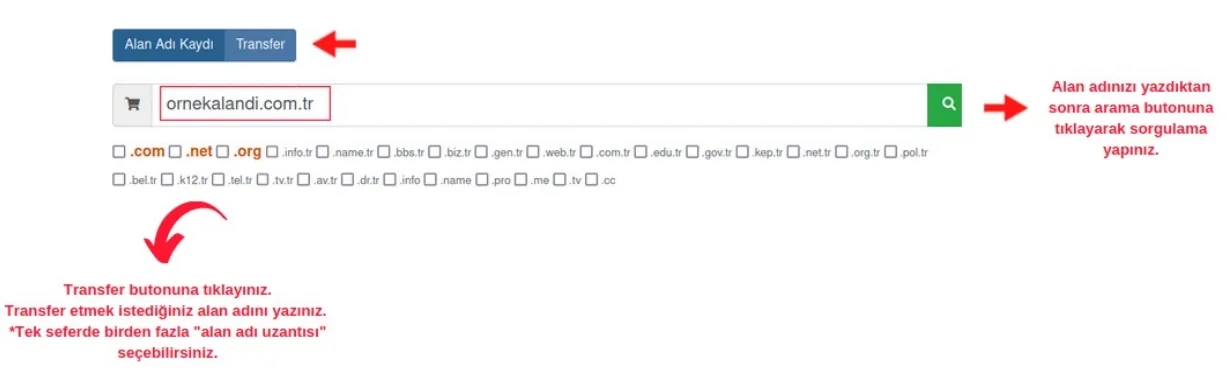
- Enter the domain name you want to transfer in the search box in the control panel.
Click the “Transfer” button. Then click the search button.
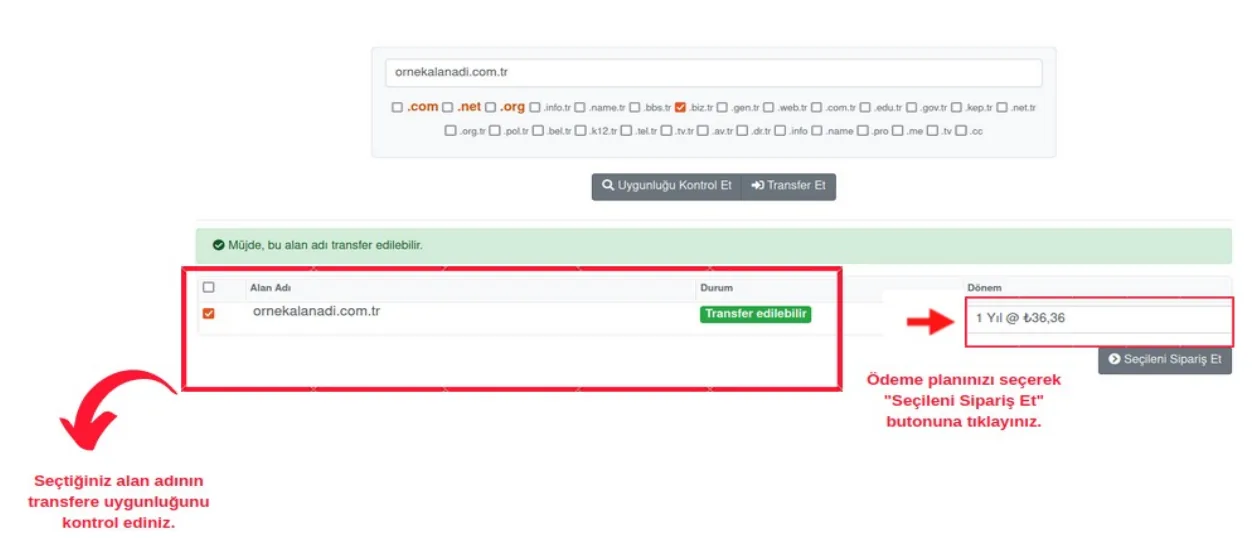
- Select how long you want to own the domain name eligible for transfer in the Period section.
- Click the “Order Selected” button to proceed to the configuration section.
EPP Code and Add-on Services
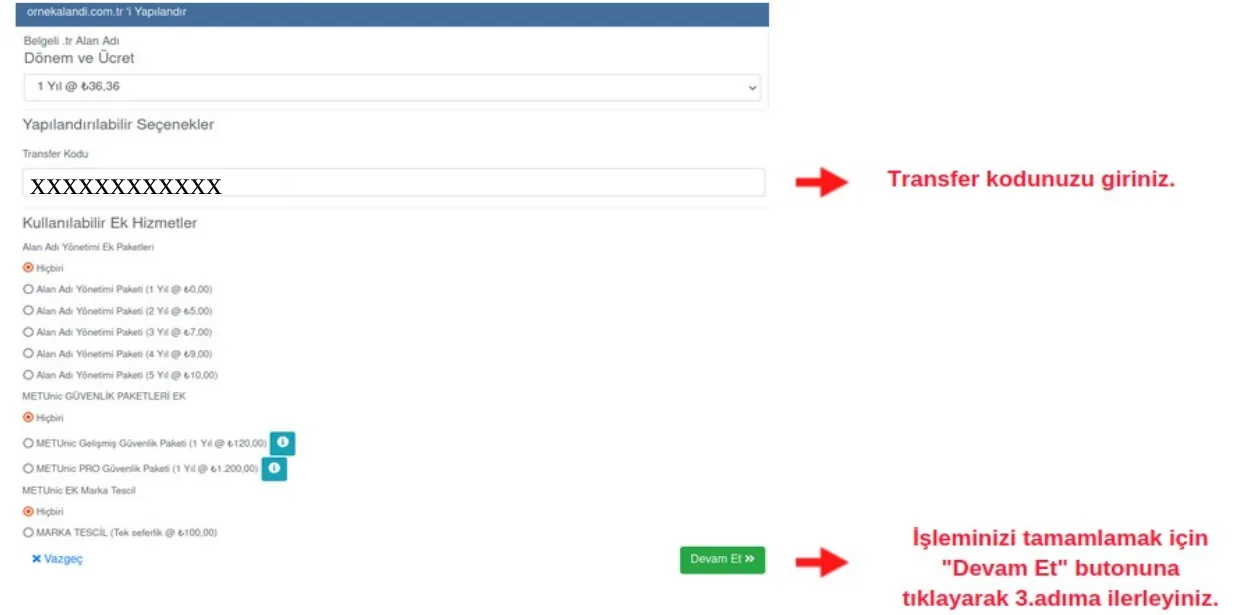
- On the page that opens, enter the EPP code (transfer code) you received from the registrar where your domain name is currently registered in the “Configurable Options” section.
EPP code (transfer code): The EPP code (transfer code) used in domain name transfers is a kind of security code. It is not possible to complete a transfer without obtaining this code from your current registrar!
- In the Available Add-on Services section, you can select a Domain Name Management Add-on Package you would like to add.
The packages in this section mean the following;
Reviewing the Order and Payment
- By clicking the “Continue” button, you can proceed to the screen where you can review your order.
- On this screen, where you can review your order, you can make changes to your order by clicking the “Edit” button next to the relevant domain name.
You can cancel the domain name or service by clicking the “Delete” button.
- If you want to add to your order, you can click the “Continue Shopping” button in the bottom right corner of the page.
- After making the necessary changes, you can proceed to the payment screen by clicking the “Go to Payment” button.
- In this section, select either “Credit Card” or “Use Credit”, whichever you prefer.
Use Credit: A system that allows you to pay using the balance you have previously added to your account.
- Check the “I have read and accept the Domain Name Service Agreement.” box and click the “Confirm Order” button.
- Fill in the required information on the page that opens and click the “Pay” button.
- You can see the domain name for which you started the transfer by making the payment under your domain names listed in the “Pending” section.
- At this stage, your transfer will be checked by us. After the checks are completed, your transfer will be approved.
Was this article helpful?
Thank you for your feedback.
Still stuck? Our support team is here to help. Tell us your question and our experts will help you.