
Contents
You can register a new domain name through METUnic in a few steps. In this guide, you will find every stage of the application, from searching for your domain name to completing the payment, together with screenshots.
Before you start your application
You can apply for a domain name by logging in with your username at metunic.com.tr and clicking the “Place Order” tab.
At the top of the application screen there are four steps: Step 1 – Choose Domain, Step 2 – Configure, Step 3 – Review Order and Step 4 – Checkout. You can follow which step you are on from this area.
The steps you need to complete for your application are explained in the images below.
Search for your domain name
1. Select your domain name extension, type the domain name you want to register in the search field, and click the search button to check it. If the domain name you selected is available, you can choose your payment plan and continue with the application.
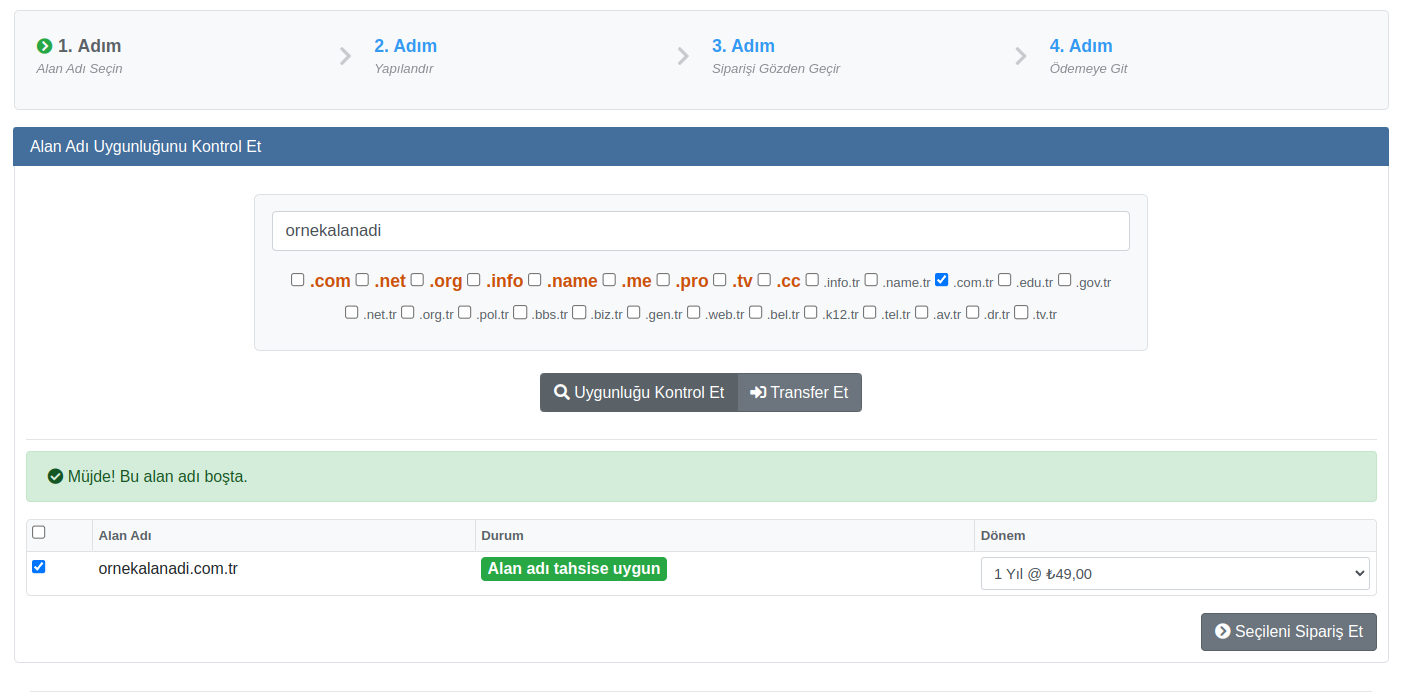
In the Check Domain Availability section, tick the boxes of the extensions you want and click the Check Availability button. If the domain name is available, you will see the message “Good news! This domain name is available.” and the status Domain name available for registration. Choose the term from the Period menu and continue with the Order Selected button. Make sure your domain name is 2–63 characters long, contains only letters, numbers and hyphens (-), and does not start or end with a hyphen.
Enter the domain name owner's details
2. In this step, fill in the form that appears with the correct information of the domain name owner. After entering all the requested information, click the “Continue” button to move on to the next page and complete your order.

The form contains fields for name and surname, Turkish ID number, address, country, city, postal code, phone and email; fields marked with (*) are required. For document-required domain name applications, the organization details in this section must match the details of the organization that holds the documents, and your documents must be submitted correctly and completely. You can find which extensions require documents on the Required Documents page.
Review your order
3. At this stage, you can review your order and edit any fields you want to change.
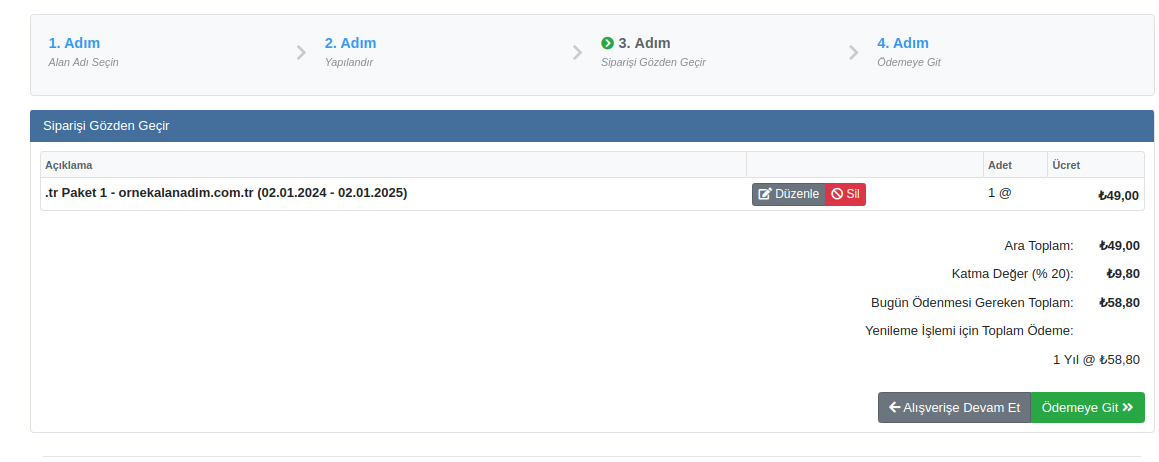
On this screen, each item has Edit and Delete buttons next to it. You can see the subtotal, the value added tax and the total due today here. Click Continue Shopping to add other products, or Checkout to continue.
Accept the agreements and complete the payment
7. On the next page, after accepting the “Product Service Agreement”, you can proceed to the payment page.
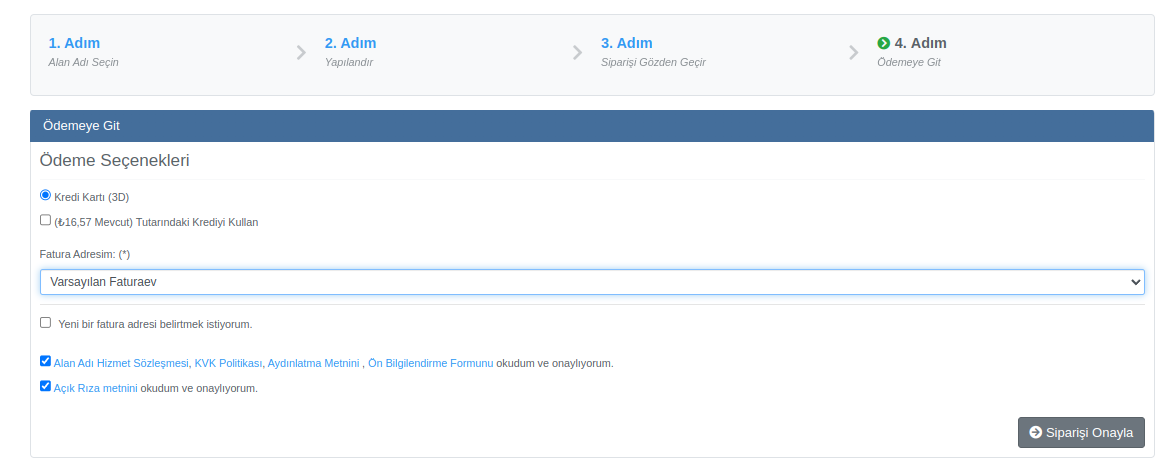
In the Payment Options section, you can choose Credit Card (3D) or, if available, the credit in your account. Select your billing address from the My Billing Address menu or specify a new billing address. After ticking that you have read and accepted the agreements and texts, click the Confirm Order button.
8. After entering your credit card details completely, complete the order.
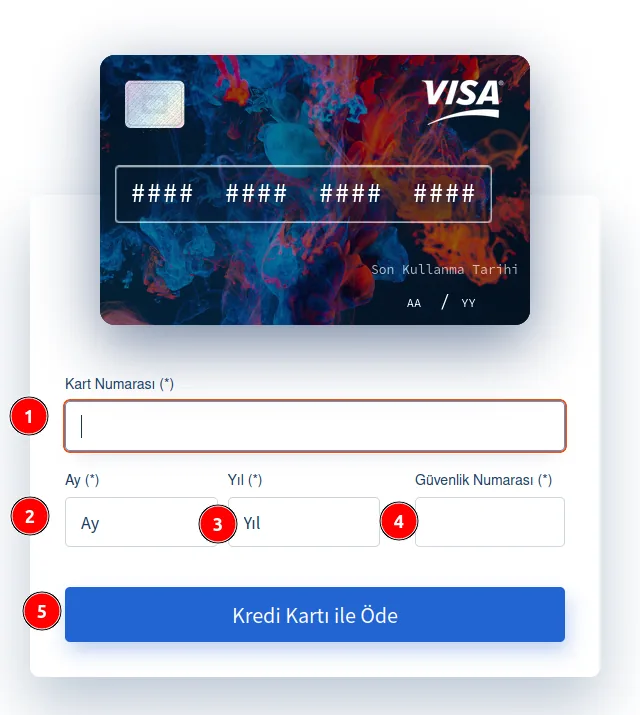
On the card screen, fill in the Card Number, Month, Year and Security Code fields in order and click the Pay by Credit Card button.
After your application
You can view the status of your application in the “My Domains” tab under the active, pending and cancelled statuses. To use your domain name with a website, you also need to get a server (hosting) service and point your domain name to those servers. If you run into a problem, you can reach us through the channels on the Help/Support page.
Was this article helpful?
Thank you for your feedback.
Still stuck? Our support team is here to help. Tell us your question and our experts will help you.