Contents
Do you want the payments you make from your account to be invoiced to different people or organizations?
At METUnic, we offer the ability to define multiple billing addresses so that the different payments you make can be invoiced according to separate person or organization details.
Accessing the Billing Addresses Menu
To add new billing addresses to use when invoicing the payments you make from your customer account, all you need to do is access the “Billing Addresses” menu.
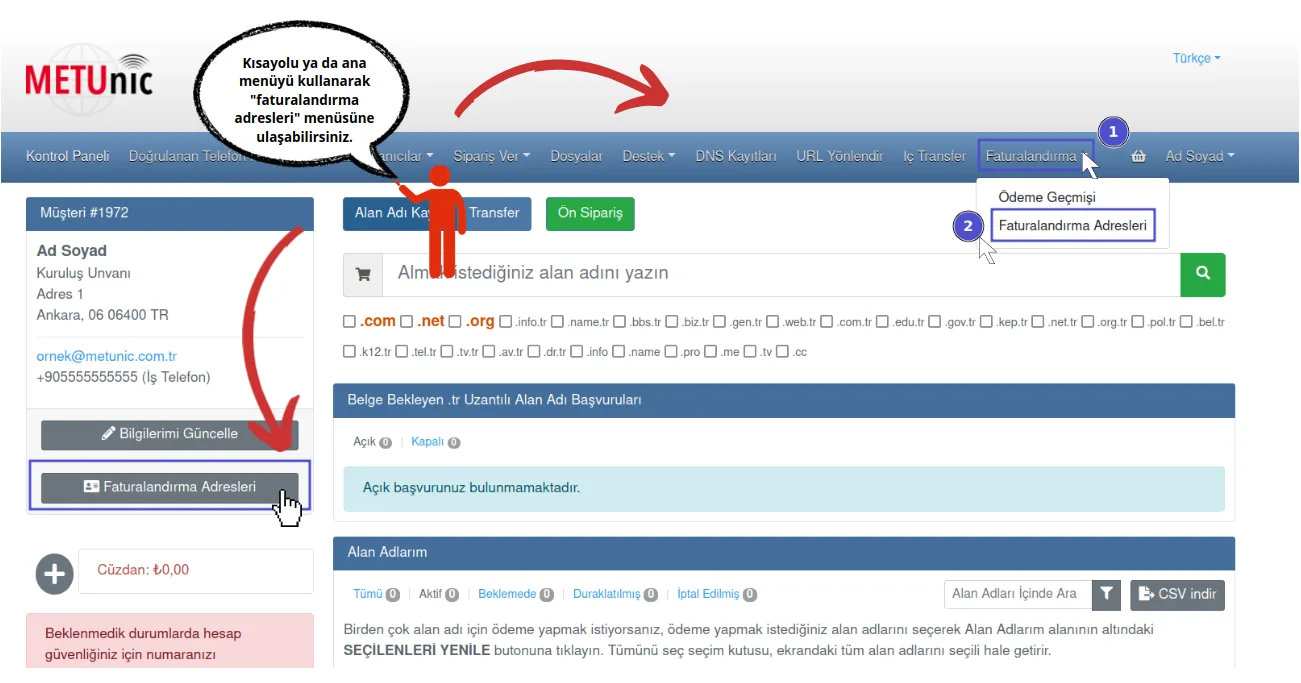
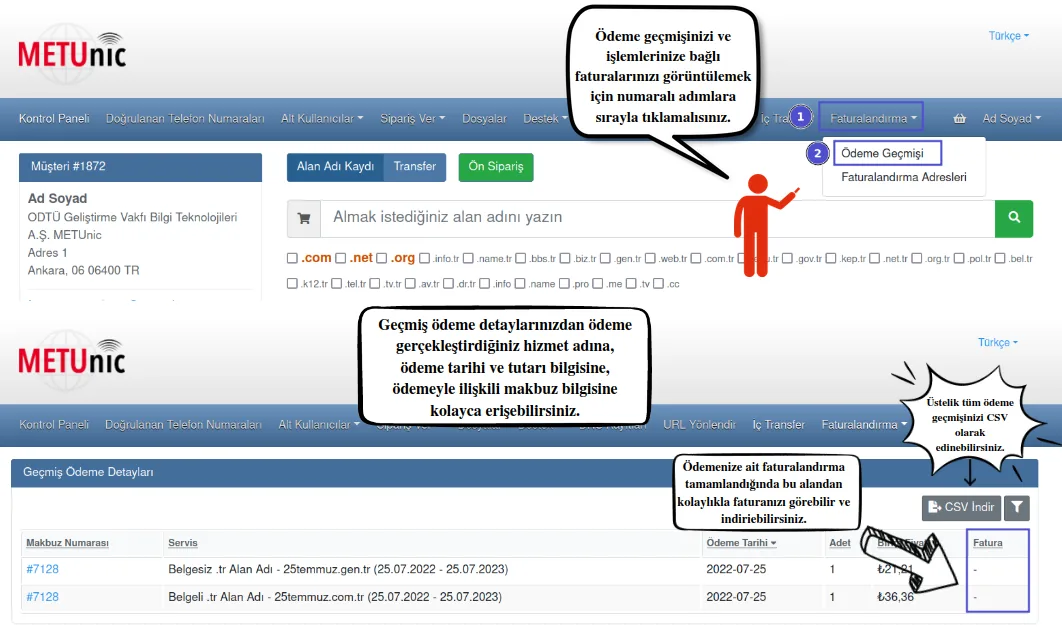
As numbered in the shared image, you can click the “billing” main menu, which you can access on screen even while on other pages of your customer panel, and then enter the “Billing Addresses” menu.
Also, if you are browsing your home page, you can enter the “Billing Addresses” menu directly using the shortcut under your customer card.
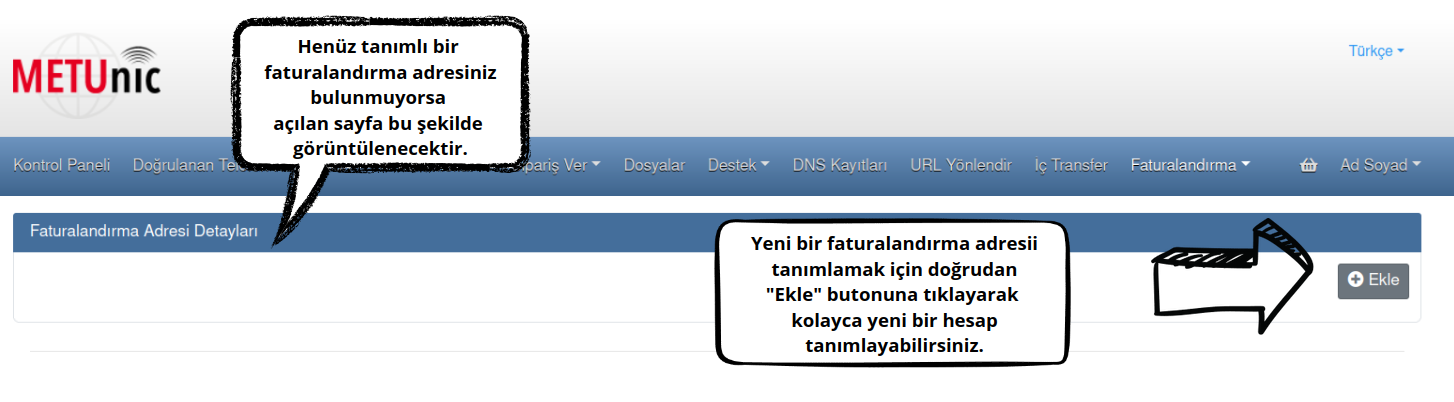
When you enter the menu, if you do not yet have a defined billing address, no saved card will be displayed.
Adding a New Billing Address
When you click the “Add” button, a pop-up window will be displayed on the page.
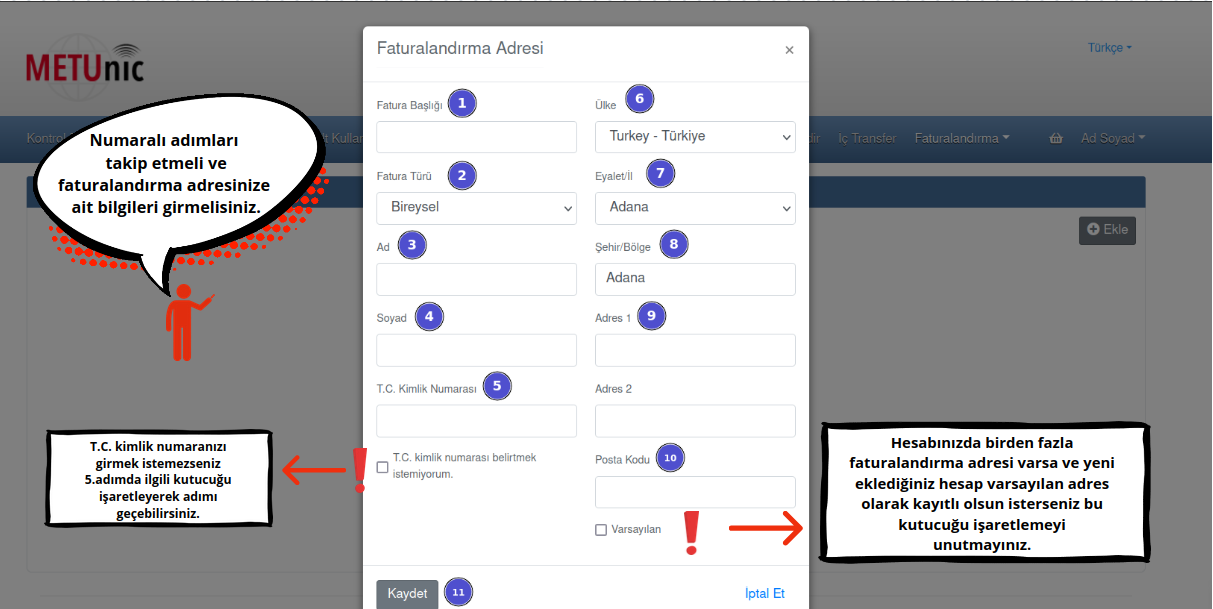
In this window, you must enter the details of the new billing address you want to create correctly, following the steps.
You can select one of the different invoice types for individuals, companies, sole proprietorships, and foreign persons or organizations, and enter the other details accordingly.
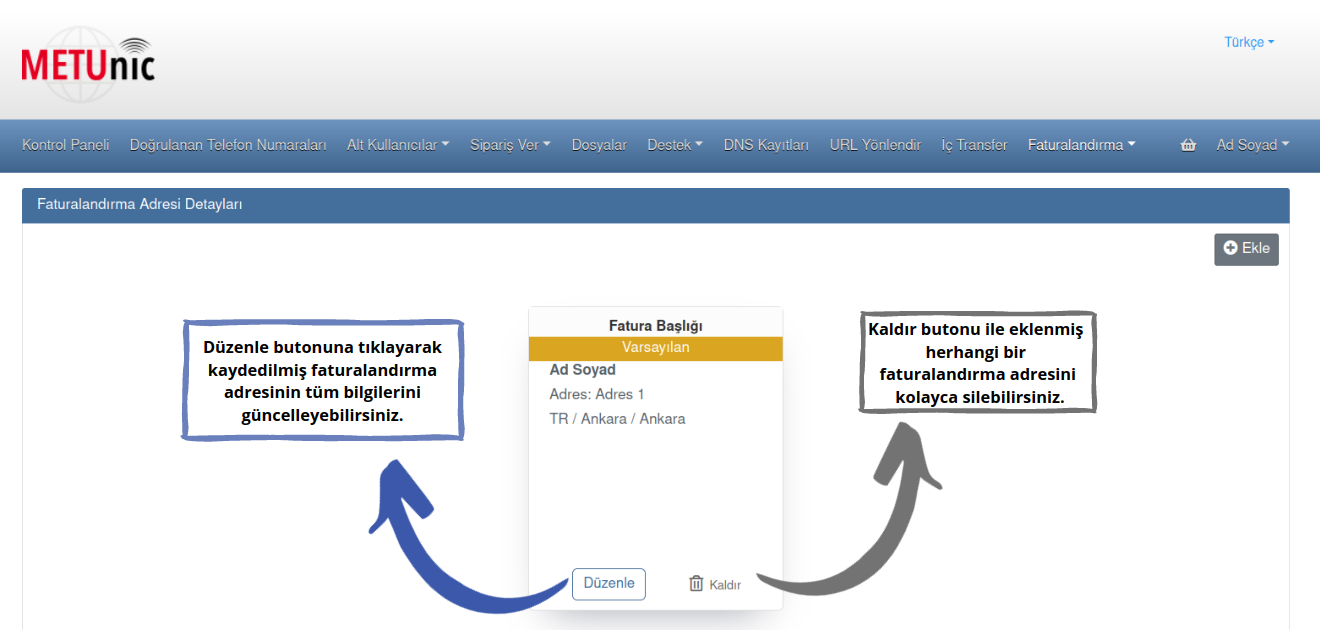
If there is no billing address previously saved in your account, the first billing address you add is saved as the “default” address. Default billing addresses cannot be removed from the account.
The newly added billing address is saved as a card in the billing addresses menu. You can update or delete this record at any time.
Selecting a Billing Address at Payment
You can select your added billing addresses at the final step of your payment process and continue with your transaction.
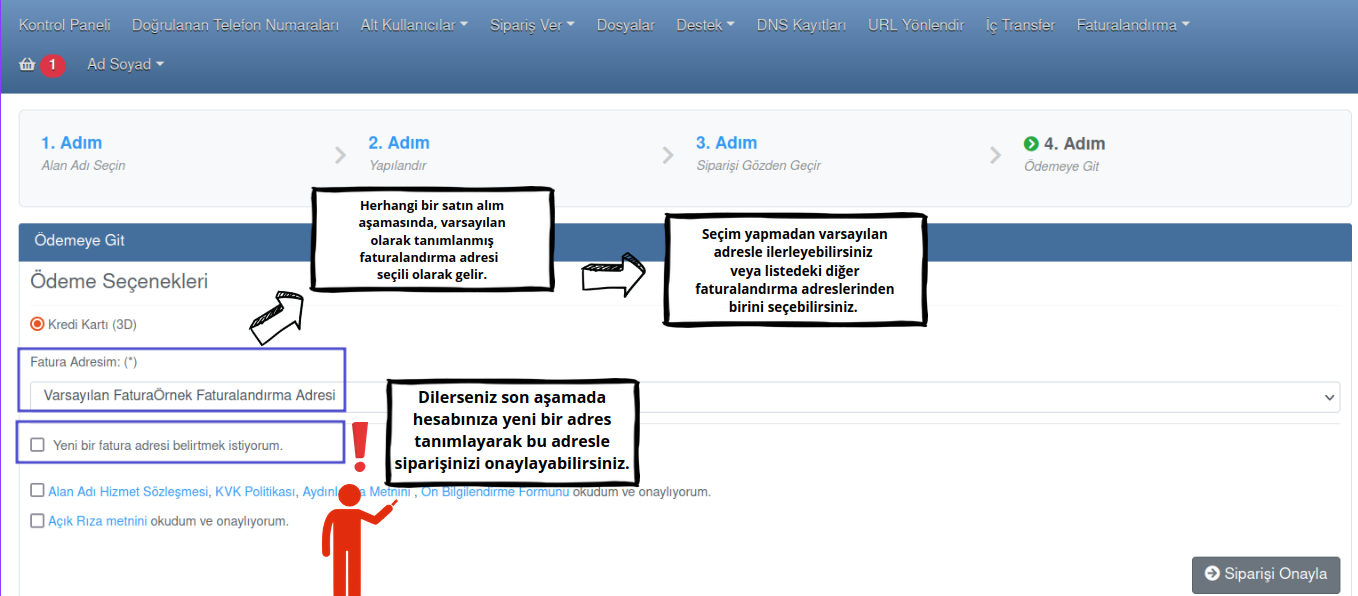
In any purchase, in addition to continuing with the default address or with other addresses you can select from the list, you can also define a different billing address right at the time of payment and confirm your order with that address.
While the address you add is saved to the billing addresses menu at the same time, all that is left for you is to enjoy having completed your transactions quickly through METUnic.
With the invoice viewing feature, you can now access your invoices from your control panel!
By clicking the payment history in the billing menu, you can view in detail which service you paid for, when and how much, and access the completed e-archive and e-invoice information linked to these payments.
You can also download all the details shared on this page as a CSV file.
Was this article helpful?
Thank you for your feedback.
Still stuck? Our support team is here to help. Tell us your question and our experts will help you.