
Contents
1. Log in to your METUnic customer account. Click the "Domain Name Registration" heading. Type the domain name you want to have allocated in the relevant row and click the search button.

2. If the domain name is available for allocation, select the number of years and click the "Order Selected" button.

3. On the page that opens, fill in all the domain name owner's information completely. At the bottom of the page, under "Available Add-on Services", select "Domain Name Certificate", choose the number of years under "Select Year", and click the "Continue" button.

Payment and Certificate Activation
4. On the Review Order page, click the "Go to Payment" button.

5. Among the payment options, select "Credit card" or "Credit". Check the options stating that you have read and approved the domain name agreement, the KVKK (Personal Data Protection Law) Policy, the pre-information form and the Explicit Consent text. Click the "Confirm Order" button.

6. If the domain name is allocated without documents, the Domain Name Certificate will become active within approximately 10-15 minutes.

Downloading the Registration Certificate
7. Once the service is active, to access the Domain Name Certificate click "Control panel" - "My domain names" - "Information" - "Add-ons".
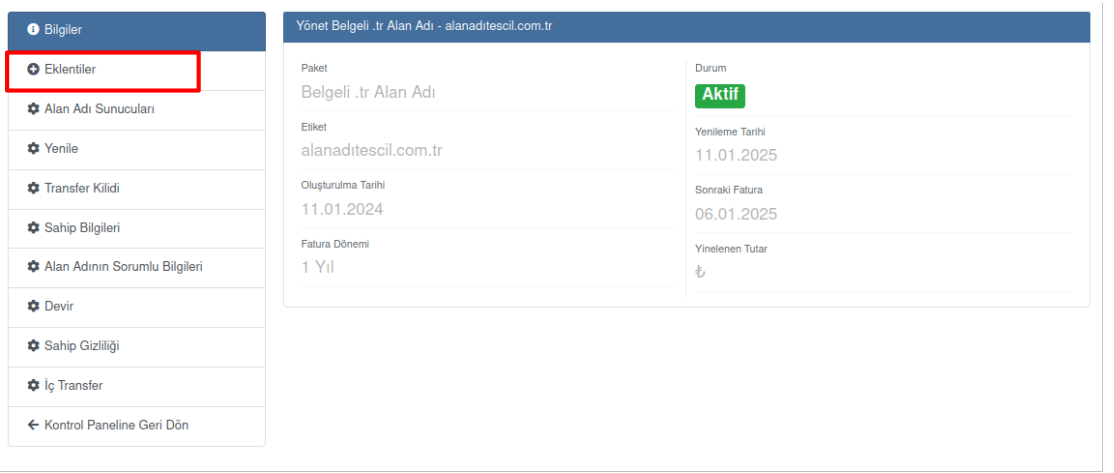
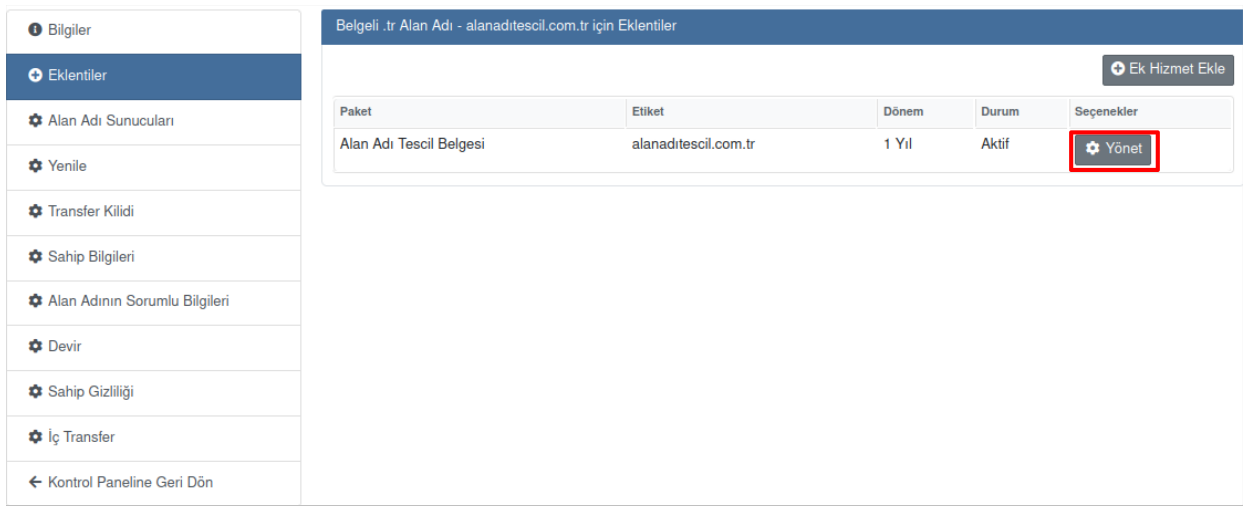
8. Click the "Manage" button on the right side of the Domain Name Certificate.
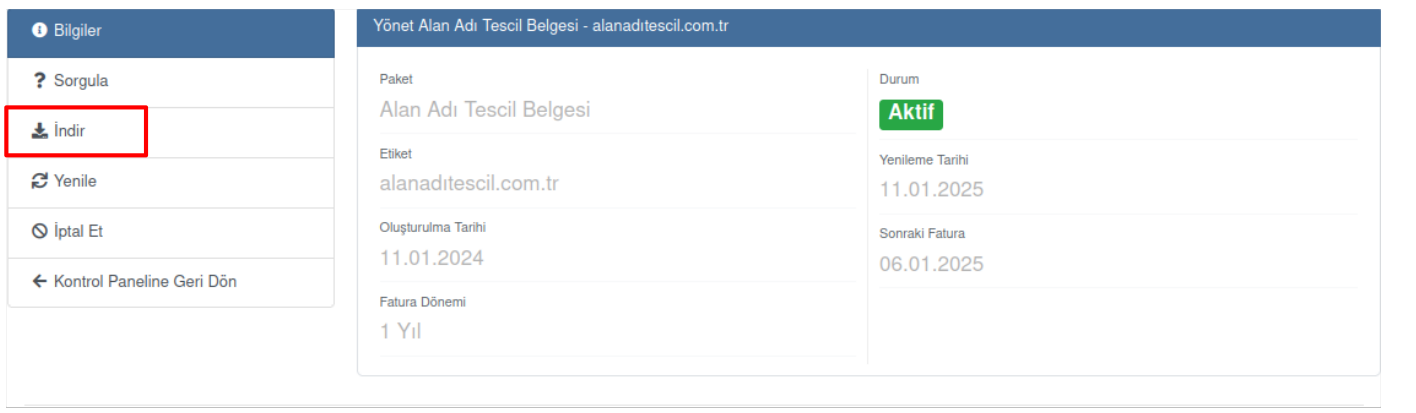
9. You can download the Domain Name Certificate by clicking the "Download" button.
Verifying the Registration Certificate
10. To verify the purchased certificate, click the "Verify" button.
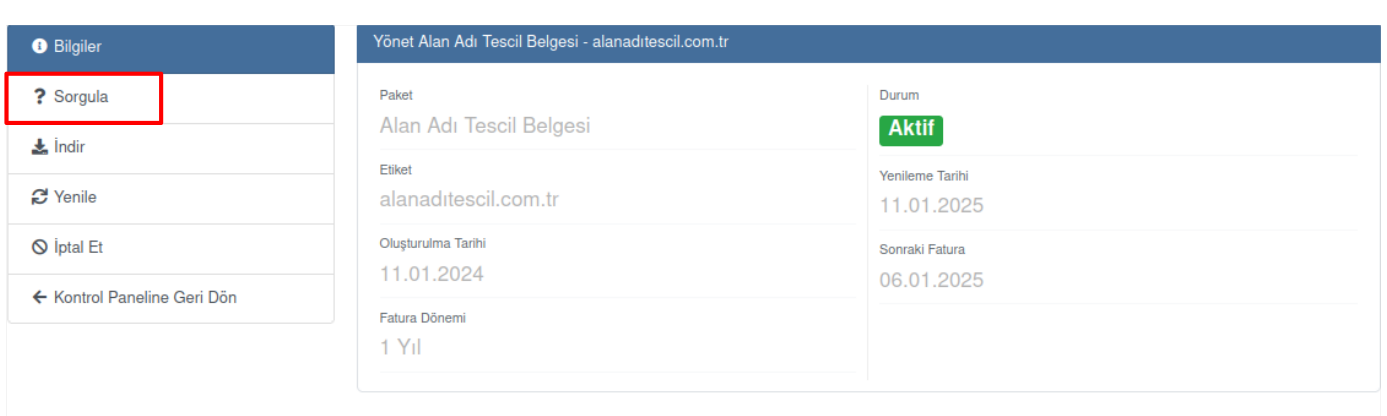
11. On the page that opens, enter the relevant information in the "Enter Document Number" and "Enter Domain Name" fields. Click the box to the left of "I am not a robot".

12. After following the relevant steps, click the "Verify" button.

13. You can download the document by clicking the "Create PDF Document" button in the upper right corner of the Verification Document.
Was this article helpful?
Thank you for your feedback.
Still stuck? Our support team is here to help. Tell us your question and our experts will help you.