
Contents
1. Log in to your METUnic account. Select “Control Panel” – “My Domain Names”.

2. On the page that opens, click the “Info” button next to the domain name to which you want to add a “Domain Name Certificate”.
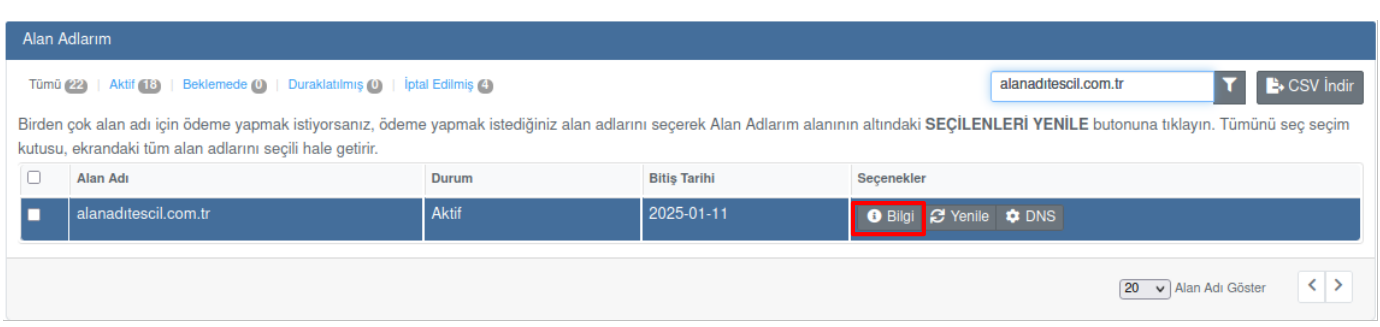
3. Select “Addons”.
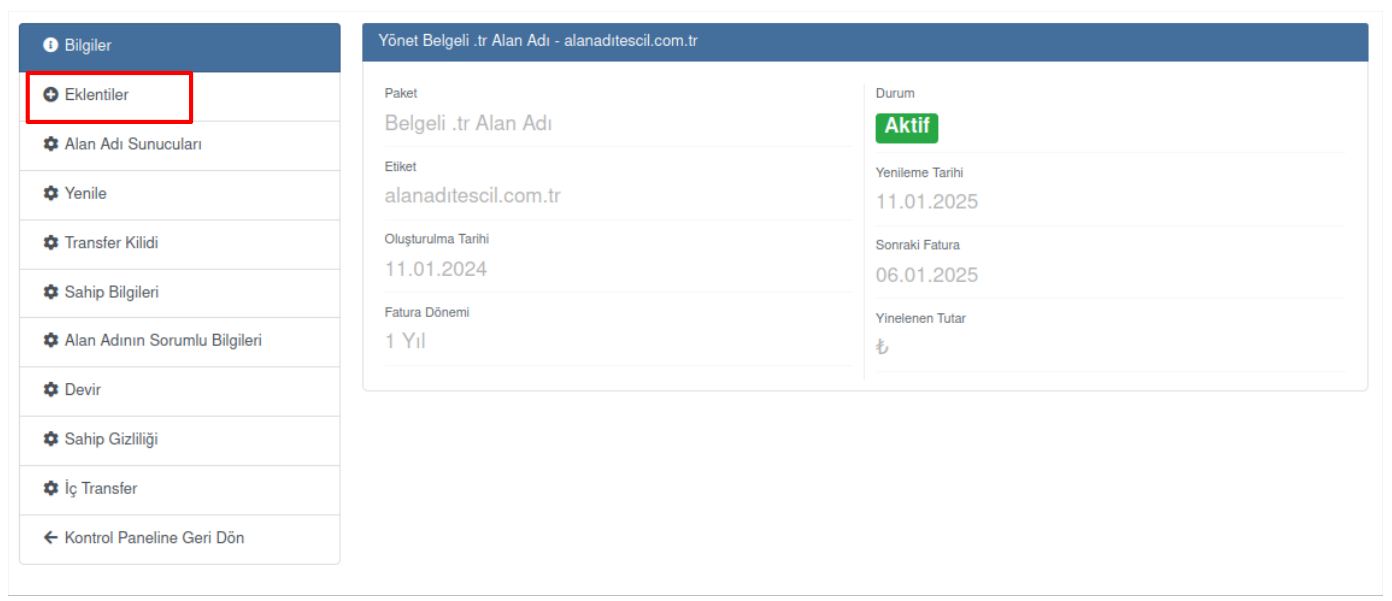
4. Click the “Add Additional Service” button.
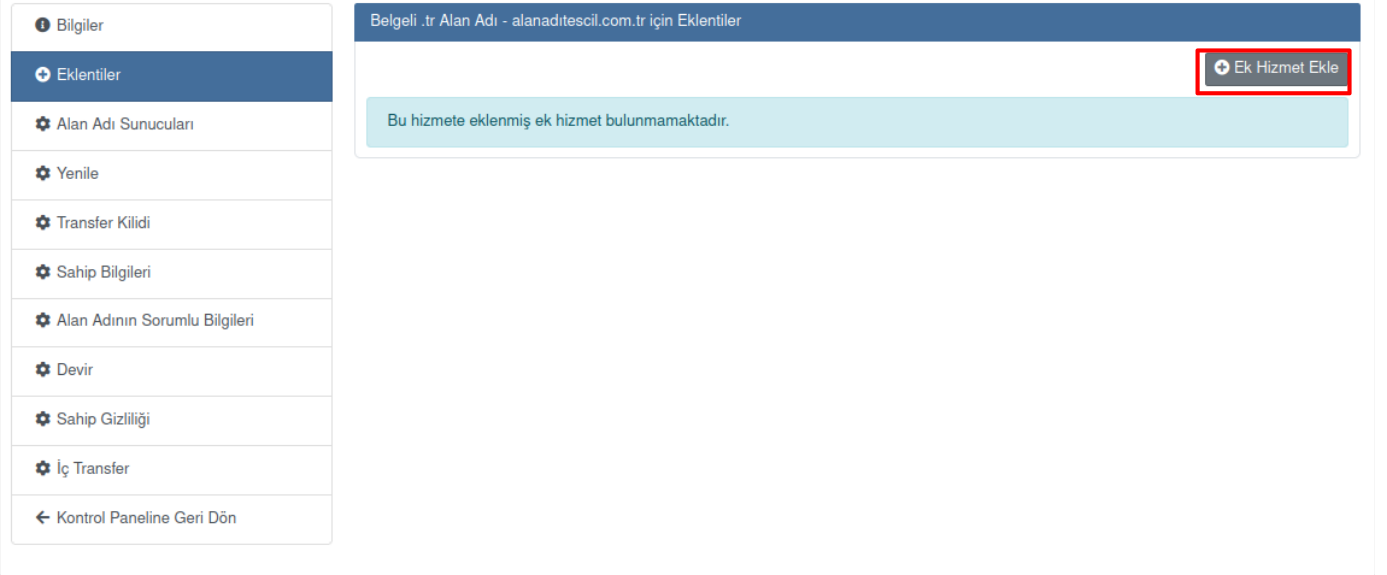
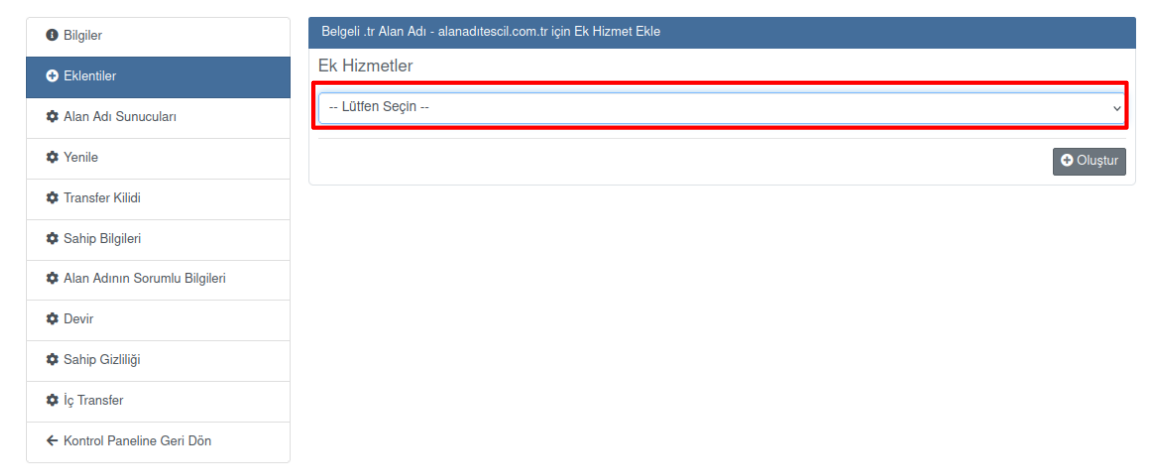
5. Click “Please Select”. Select “Domain Name Certificate” and click the “Create” button.
Payment and Service Activation
6. From the payment options, select “Credit Card” or “Credit” and follow the payment steps.
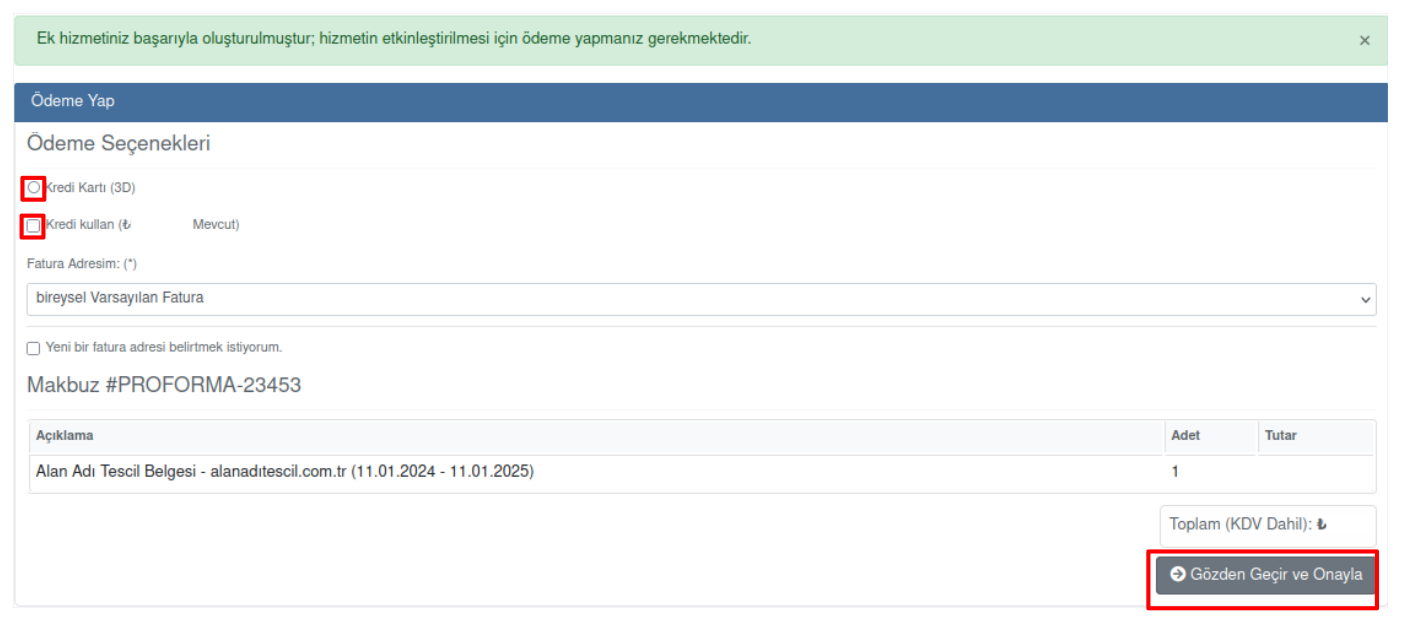
7. After the payment is completed, the service will be active within 10-15 minutes.

Downloading the Domain Name Certificate
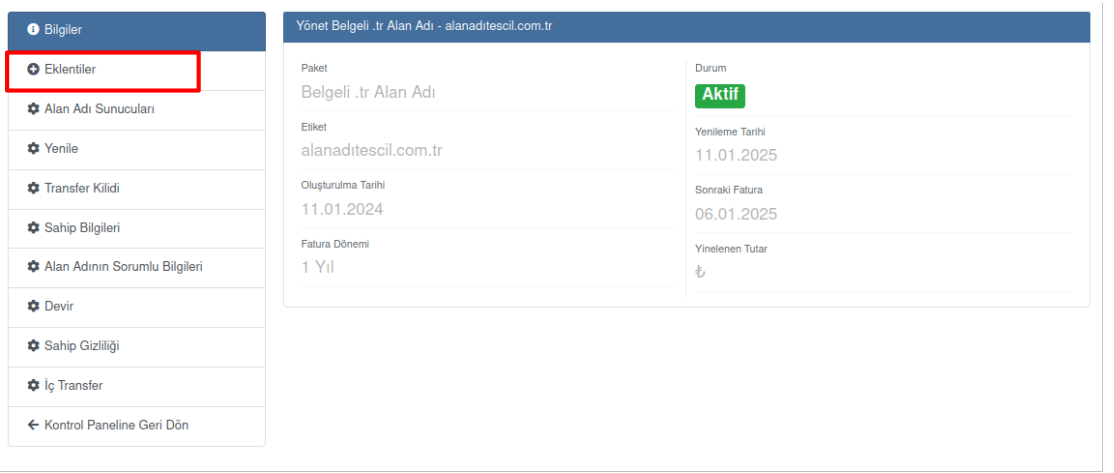
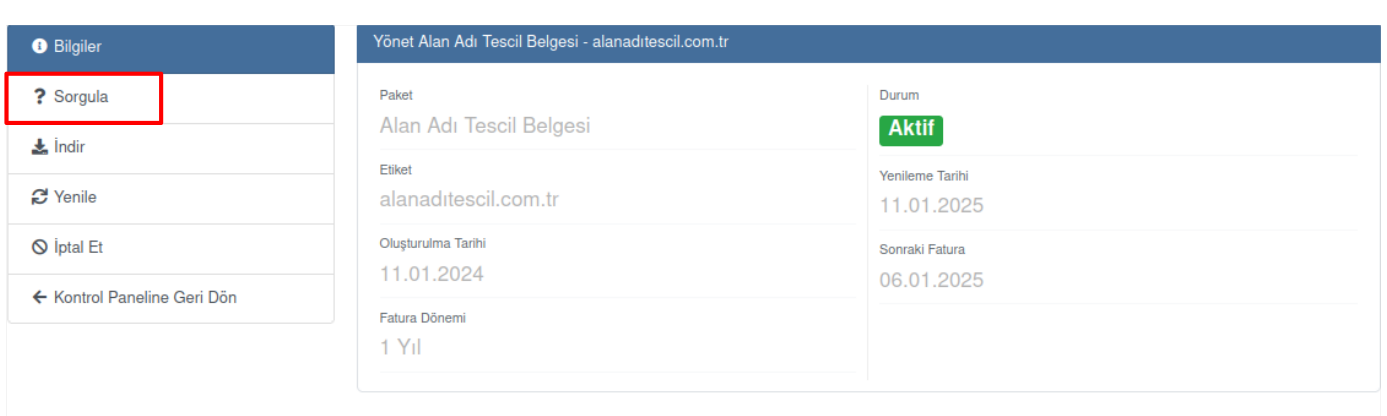
8. Once the service is active, to access the Domain Name Certificate, click “Control Panel” – “My Domain Names” – “Info” – “Addons”.
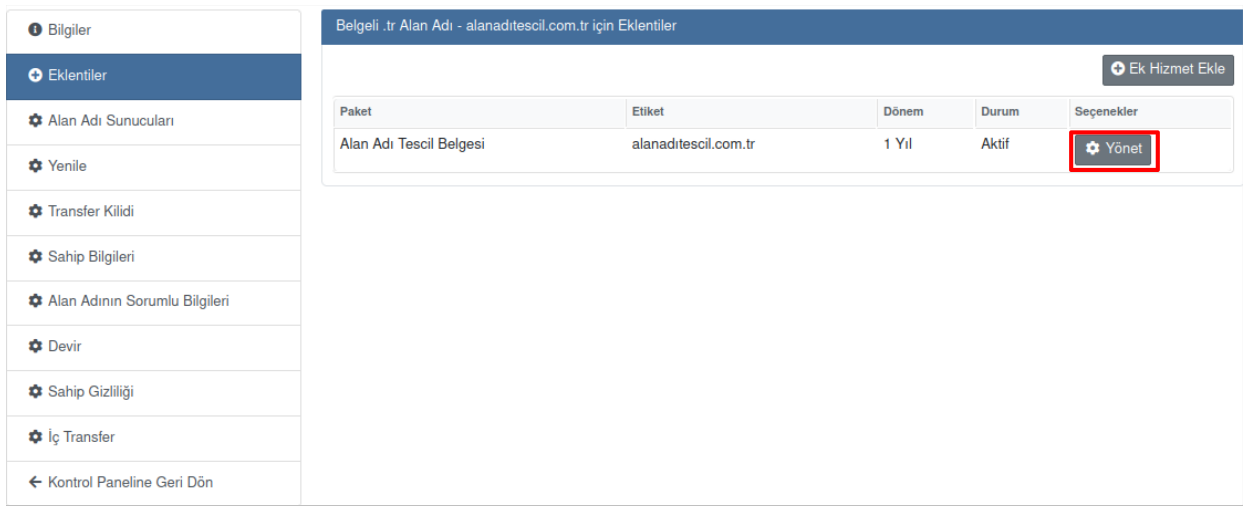
9. Click the “Manage” button to the right of the Domain Name Certificate.
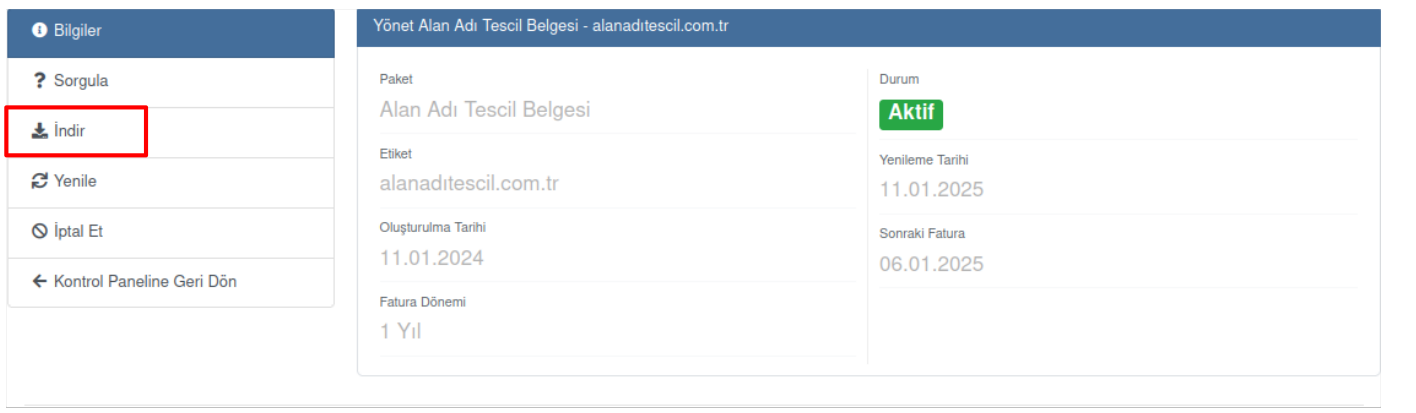
10. Click the “Download” button to download the Domain Name Certificate.
Verifying the Domain Name Certificate
11. To verify the purchased certificate, click the “Verify” button.
12. On the page that opens, enter the relevant information in the “Enter Certificate Number” and “Enter Domain Name” fields. Tick the box to the left of “I am not a robot”.

13. After completing these steps, click the “Verify” button.

14. You can download the document by clicking the “Create PDF Document” button in the top right corner of the Verification Certificate.
Was this article helpful?
Thank you for your feedback.
Still stuck? Our support team is here to help. Tell us your question and our experts will help you.