Contents
Generating a CSR Using OpenSSL for an Apache Web Server
This guide will walk you through the process of generating a CSR (Certificate Signing Request) using OpenSSL for Apache. To learn why CSRs and your private key are important, see our CSR Overview article. If you have already generated your CSR and received your trusted SSL certificate, you can check our SSL Installation Instructions page and skip the steps below.
1. Log In to Your Server
Log in to your server's terminal via Secure Shell (SSH).
2. Run the CSR Generation Command
Run the following command to generate a private key and a CSR:
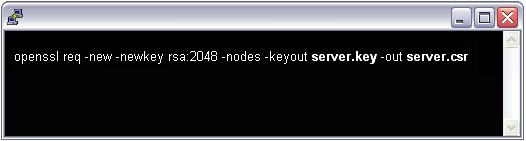
openssl req -new -newkey rsa:2048 -nodes -keyout server.key -out server.csrNote: Replace the "server" part with the domain name you want to secure.
3. Enter Your Information
During the process, you will be asked to enter the following information:
- Common Name: The fully qualified domain name (FQDN) you want to secure with the certificate. For example,
www.orneksite.com,guvenli.site.org,*.alanadi.net. - Organization: Your company's official legal name and corporate designation.
- Organizational Unit (OU): The name of the relevant department, for example 'Information Technology' or 'Web Security'.
- City or Locality: The city where your organization is legally registered. Do not use abbreviations.
- State or Province: The state or province where your organization is legally registered. Do not use abbreviations.
- Country: The two-letter country code where your organization is legally registered (e.g. TR, US, DE).
Note: You are not required to enter a password or passphrase. This field is optional and can be used to provide additional security for your key pair.
4. Copy the CSR Text
Open the CSR file you generated with a text editor (for example, Notepad) and copy all the text, including the following sections:
-----BEGIN CERTIFICATE REQUEST-----
...
-----END CERTIFICATE REQUEST-----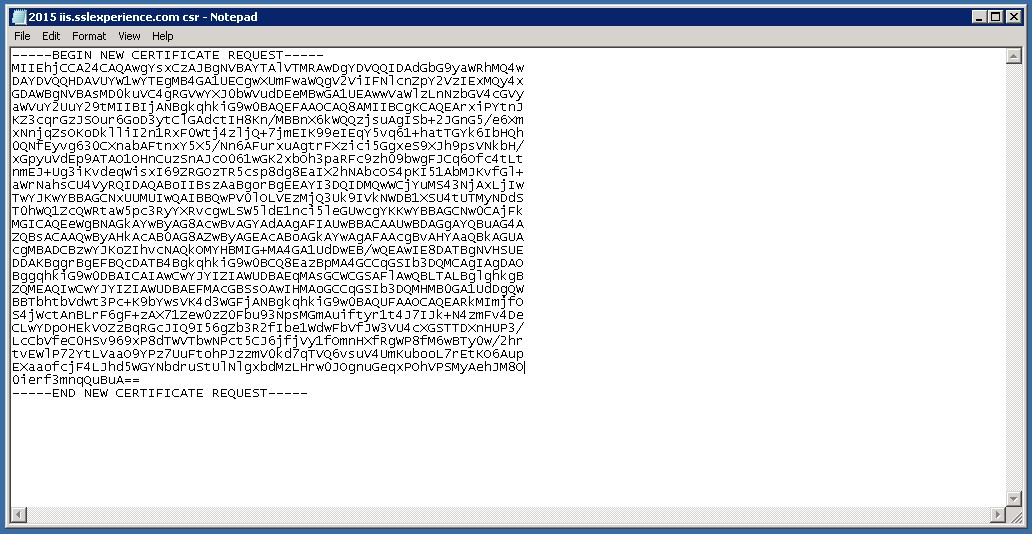
Note:
- Your CSR file will be stored in the user directory you connected to via SSH, unless otherwise specified.
- We recommend that you store or back up your generated
.keyfile securely for later use.
5. Complete the Order
Return to the Certificate Generation Form on our website, paste the CSR you copied into the relevant field and complete the generation process.
After you generate your CSR, your order will be put into the validation process by the certificate provider (Certificate Authority – CA). Depending on the type of certificate you purchased, the person requesting the certificate will need to complete a specific validation step.
Was this article helpful?
Thank you for your feedback.
Still stuck? Our support team is here to help. Tell us your question and our experts will help you.