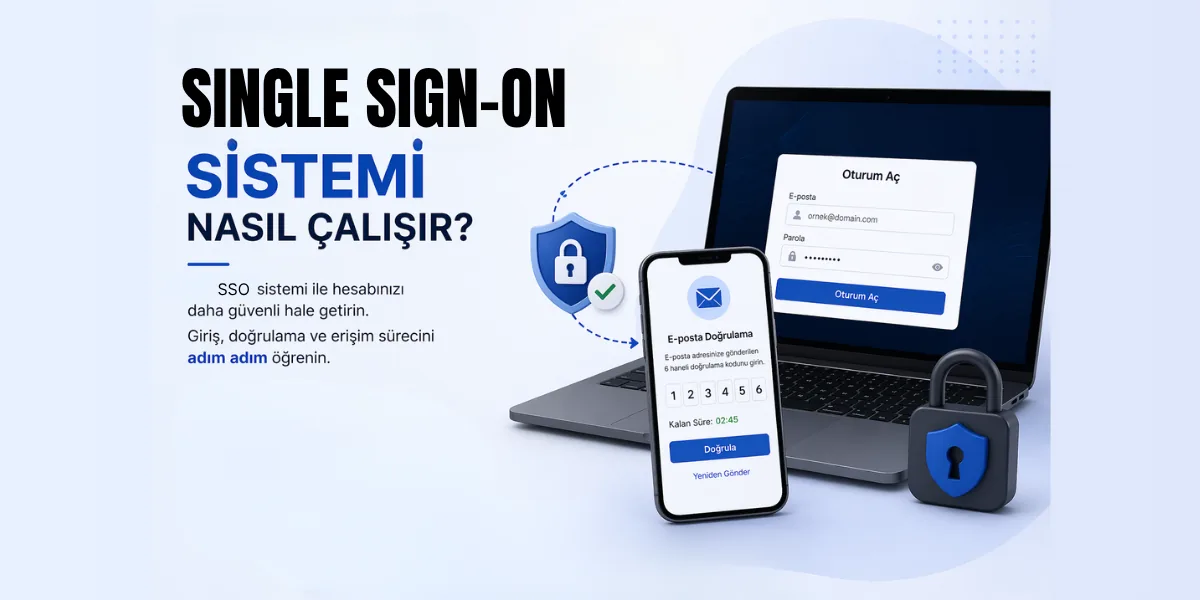
Keylock is the additional verification step used when logging in to the METUnic control panel. After you sign in with your email address and password, a verification code is sent to your registered email address, and you access the panel by entering this code. This way, someone who knows your password but has no access to your email cannot log in to your panel.
If you have just created your account, you first need to verify your email address: How to Verify Your Email Address in Your SSO Account
Logging In to the Panel
1. Go to https://app.metunic.com.tr/client/login/. Enter the email address and password registered in the panel and click “Sign In”.

Entering the Verification Code
2. Type the verification code sent to your registered email address into the verification code field and click “Verify”. The time remaining for the code is shown on the screen.

IMPORTANT: The verification code is valid for 3 minutes. At this stage, up to 5 verification codes are sent to your email address, and each code is valid for 3 minutes.
If you do not enter a code within this time, you need to start the login process again.
3. Once you enter the code in time, you can access your control panel.

If You Cannot Find the Code
Reminder: The verification code is sent from a “no-reply” address, so if you cannot find it in your inbox, please check your spam folder.
Was this article helpful?
Thank you for your feedback.
Still stuck? Our support team is here to help. Tell us your question and our experts will help you.