Contents
If you have lost a Certificate Signing Request (CSR) code you generated in cPanel, you can retrieve it from cPanel. These steps only apply if the CSR was originally generated in cPanel.
What Is a CSR and Why Is It Needed?
A CSR (Certificate Signing Request) is the encoded certificate request file the certificate authority needs to verify identity and issue an SSL certificate. When you apply for an SSL certificate, you share this code with the certificate provider. A CSR contains information such as your domain name and organisation details.
When a CSR is generated, a private key is also created on the server. The private key is used to secure the SSL certificate; it is stored only on the certificate holder's server and is not shared with anyone, including the certificate authority. If you generated the CSR in cPanel, both the CSR and the private key are stored on your server; so even if you lose the CSR code, you can view it again in cPanel.
Steps to View the CSR Code
- Log in to your cPanel account.
- In the Security section, click SSL/TLS.

- Under Certificate Signing Requests (CSR), click Generate, view, or delete SSL certificate signing requests.
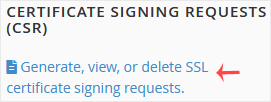
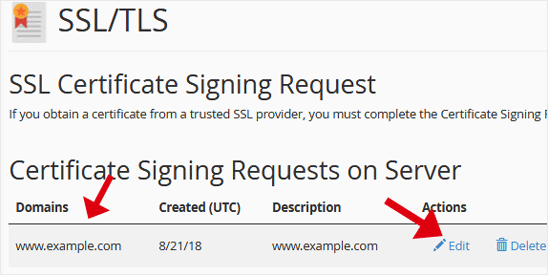
- Under Certificate Signing Requests on Server, you will see the CSR codes generated earlier.
- Click Edit in the Actions column.
- Copy the code under Encoded CSR. Include the
-----BEGIN CERTIFICATE REQUEST-----and-----END CERTIFICATE REQUEST-----lines along with everything in between.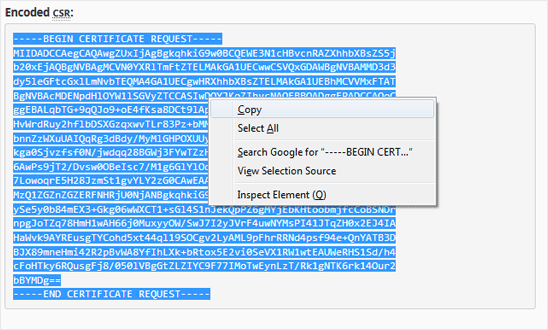
Reading the List of CSRs on the Server
In the Certificate Signing Requests on Server table, each CSR has the following columns:
- Domains: The domain name the CSR was generated for.
- Created (UTC): The date the CSR was generated.
- Description: The description entered when the CSR was generated.
- Actions: The Edit link to view the CSR and the Delete link to remove it.
If there is more than one CSR, check the domain name and creation date to choose the right one. To get the code, use the Edit link, not the Delete link.
Using the Code You Copied
After selecting the code, you can right-click and choose Copy or copy it with a keyboard shortcut. Paste the code into the CSR field of your SSL certificate application. Make sure no characters are missing at the beginning or end of the code; a CSR without its first and last lines may not be accepted.
If you generated the CSR outside cPanel, for example on another server or with OpenSSL, you will not see it in this list. In that case, look for the CSR where you generated it or generate a new CSR.
Was this article helpful?
Thank you for your feedback.
Still stuck? Our support team is here to help. Tell us your question and our experts will help you.