Contents
If you want to strengthen your digital communication with a secure, fast and professional email service, METUnic's email solutions are just right for you! By following the steps below, you can easily create your email account for your own domain name.
Step-by-Step Guide to Buying Email Through METUnic
1. Log In to the Control Panel
First, log in to your METUnic user account at www.metunic.com.tr.
2. Order the Email Service
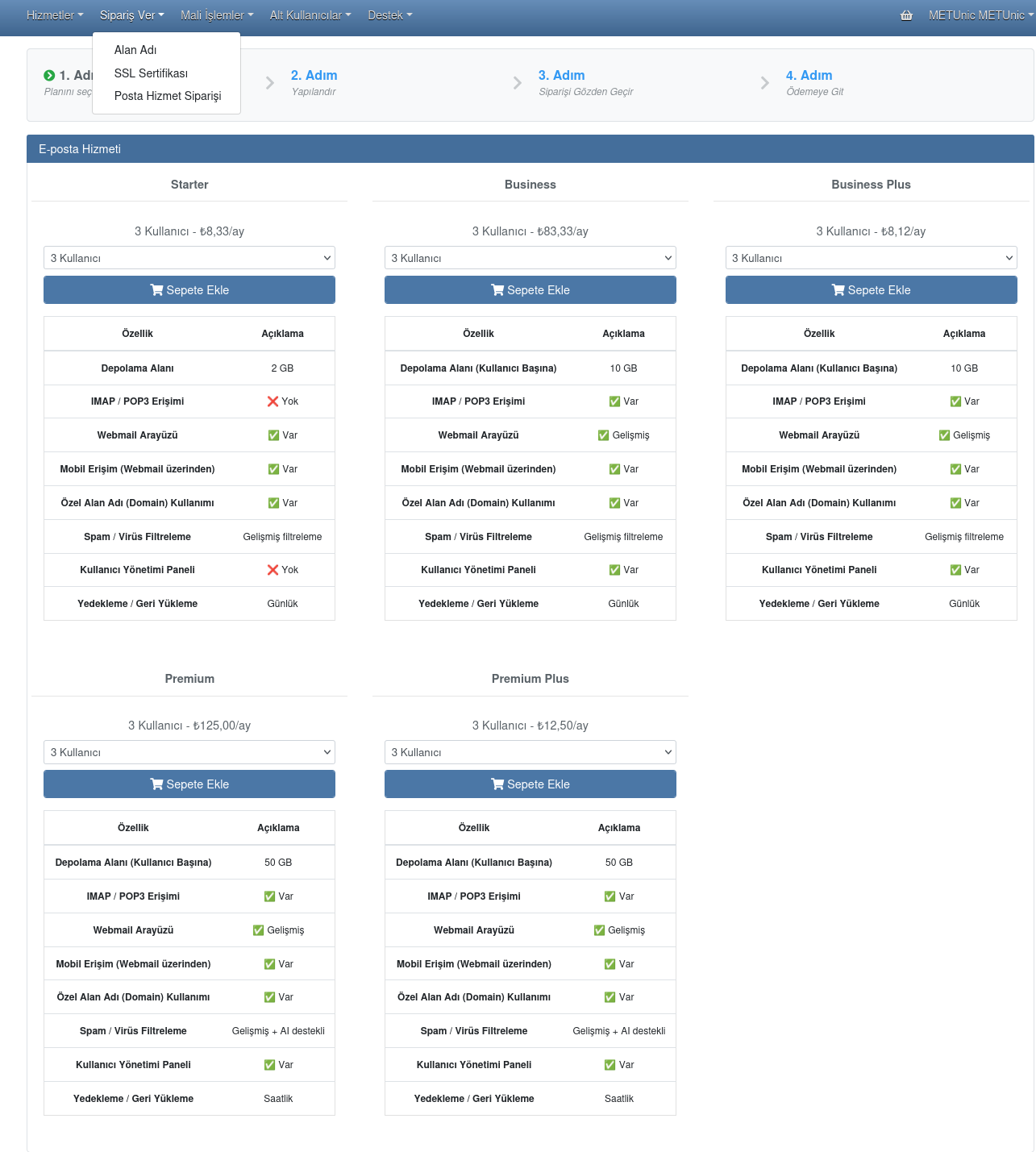
Click the “Order → Email Service Order” option in the top menu of the panel. On the page that appears, select the email package and the usage period that suit your needs. Then continue by clicking the “Add to Cart” button at the bottom of the page.
Domain Name Selection and Payment
3. Specify Your Domain Name
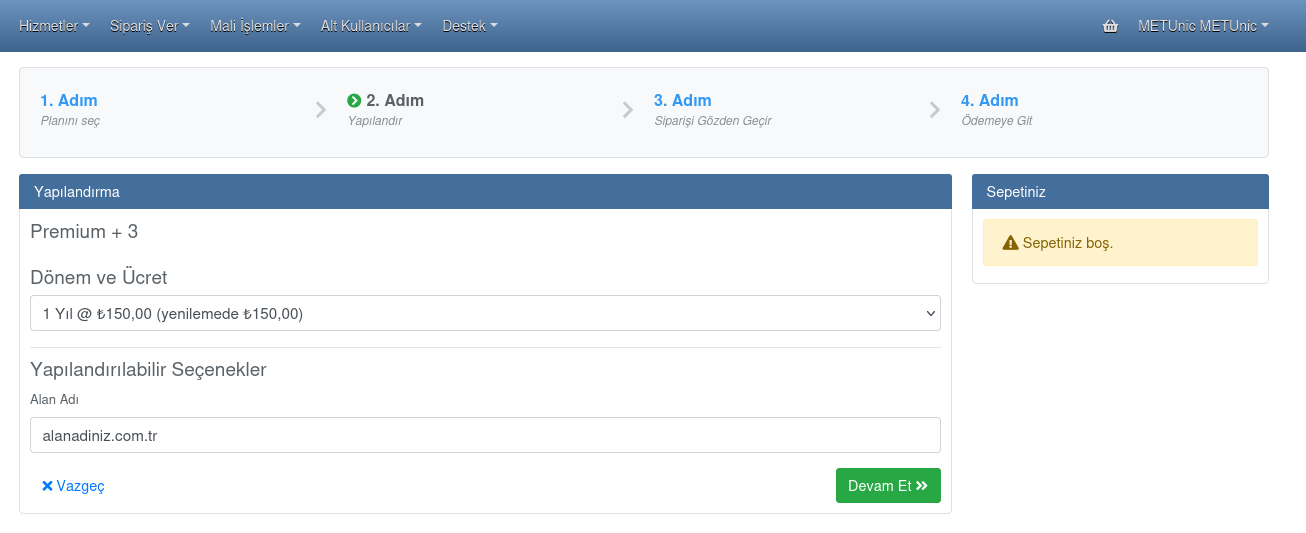
In the second stage of the process, enter the domain name that you want to associate the email service you are buying with, and move on to the next stage by clicking the “Continue” button.
4. Review Your Order and Pay
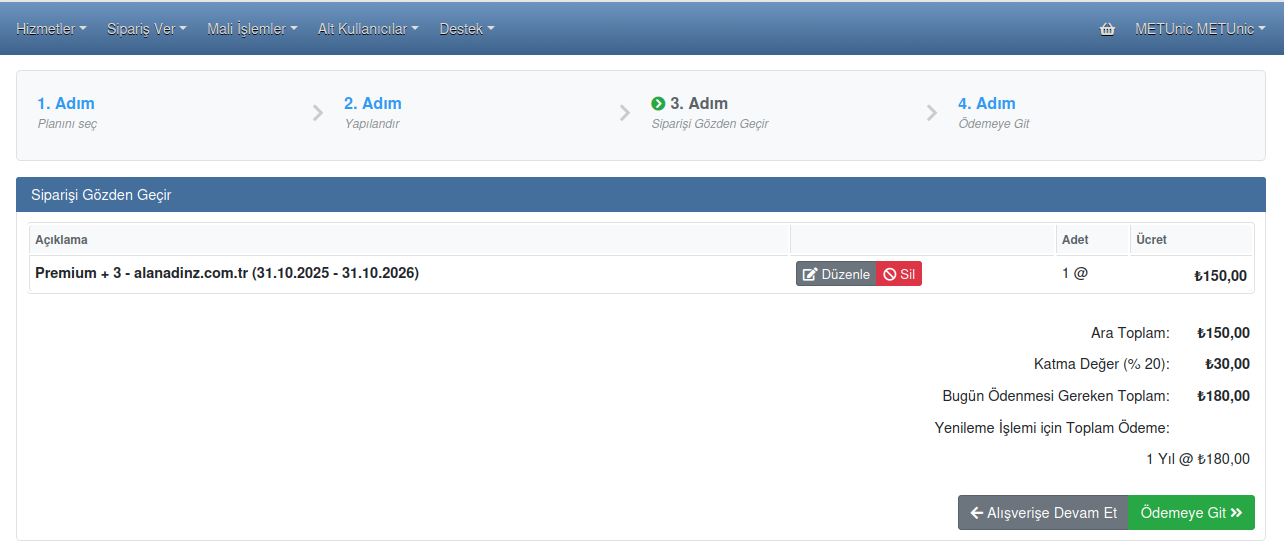
Check your order summary. If you wish, you can make changes with the “Edit” button, or complete your transaction directly with the “Proceed to Payment” option.
Activating the Service and Setup
5. Activate Your Email Service
Once the payment has been completed successfully, your email service will appear in your control panel under the “Active” tab in the “Services → Email Services” menu.

6. Complete the Setup
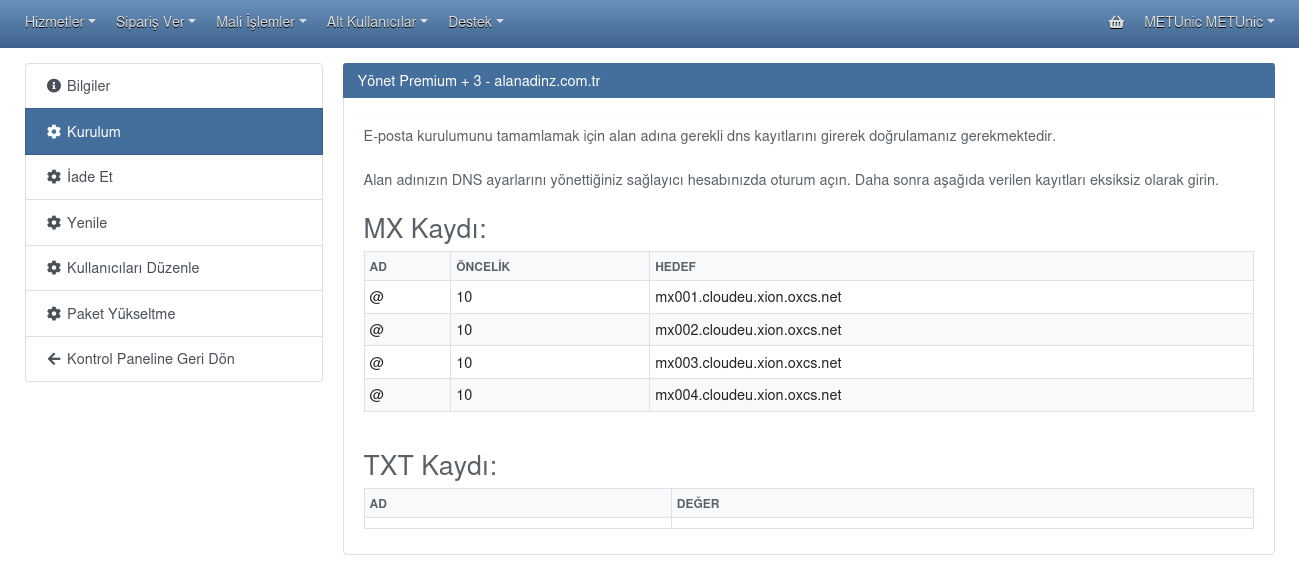
After your email service becomes active, you can view the required DNS records by clicking the “Setup” button on the right. You need to enter these records in the panel of the server where your domain name is hosted.
7. Log In to Your Webmail Account
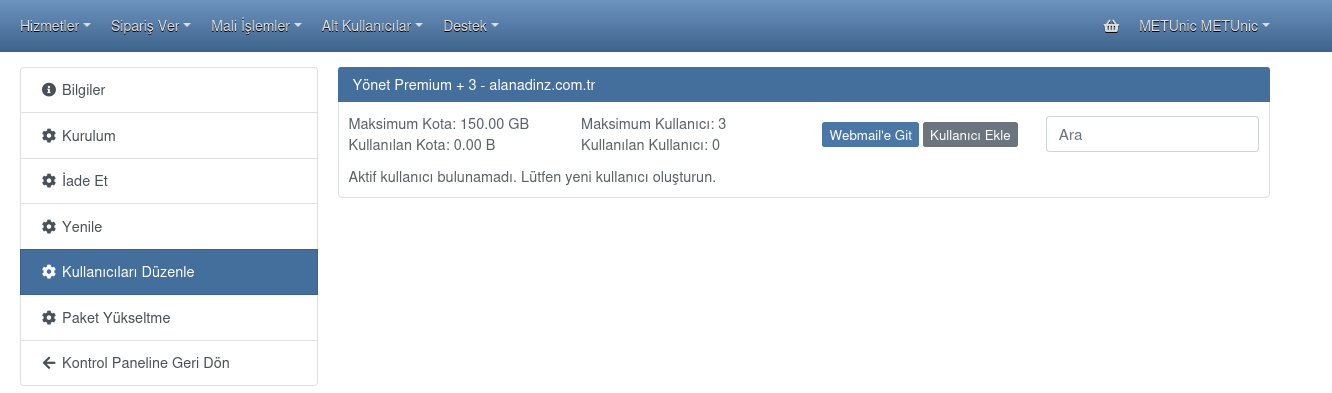
After completing the setup, you can reach the Webmail interface through the “Edit Users” tab and start managing your emails.
Why Business Email?
- Professional email addresses on your own domain name
- Strong spam and virus protection
- Synchronized operation across devices
- A secure structure that strengthens your business communication
Discover METUnic email services now to take your email communication to a new level!
Was this article helpful?
Thank you for your feedback.
Still stuck? Our support team is here to help. Tell us your question and our experts will help you.