Contents
How to Enable 2-Step Verification in Gmail
1) Click your profile icon in the top right corner of your web browser → “Manage your Google Account”.

2) Click the “Security” tab in the left menu.

3) On the screen that opens, go to the “2-Step Verification” section → Follow the prompts to add your phone number and enable 2FA.

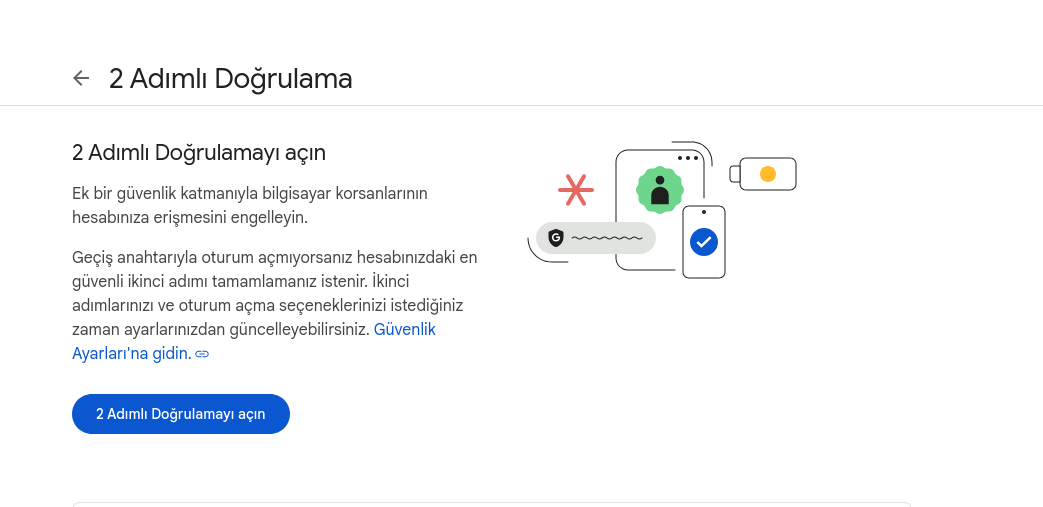
Tip: During the initial setup you can choose one of the options such as SMS, phone call or messenger; if possible, we recommend using Google Authenticator or device prompts.
How to Get an “App Password / IMAP Code”
Prerequisite: 2-Step Verification must be enabled in order to create an app password.
1) Click the “Manage your Google Account” link from your Gmail account in the top right of your web browser. Type “App passwords” in the search box on the screen that opens and click the first result.
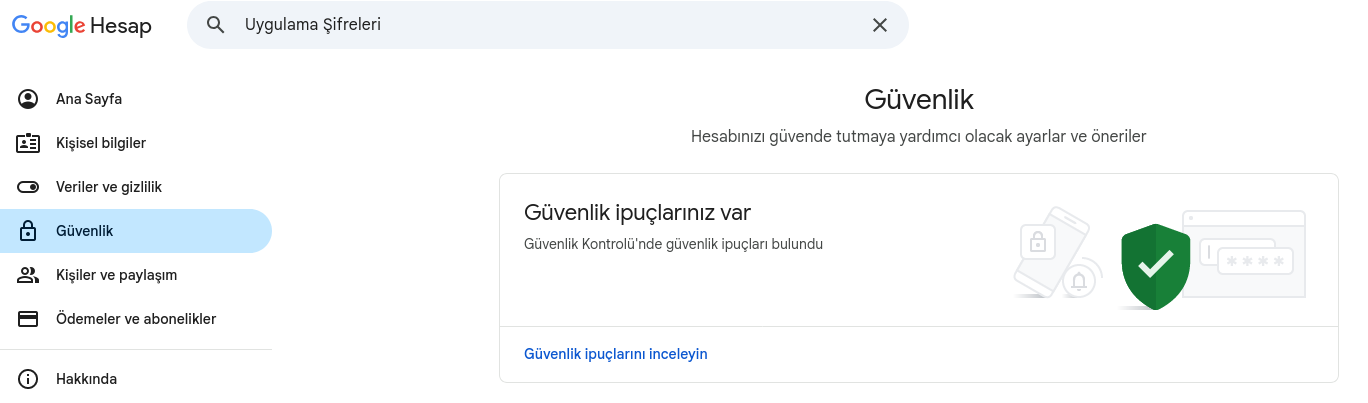
2. After entering the app name, click the “Create” button, copy the 16-character IMAP code that is provided to you, and you can start your data transfer.

Important: This password is used instead of your account password in third-party email clients such as IMAP/POP/SMTP.
Quick Checklist When Connecting via IMAP
- Username: Your Gmail address (e.g. yourname@ gmail.com)
- Password: The 16-character app password you created
- IMAP server: imap.gmail.com, Port: 993, SSL/TLS: On
- SMTP server: smtp.gmail.com, Port: 465 (SSL) or 587 (STARTTLS)
Frequently Asked Questions
Why is an app password needed?
When 2FA is active, some applications cannot sign in with the regular password; this password is a secure pass-through key.
What if I lose my app password?
From the same screen, you can revoke the old passwords and create a new one.
What happens to 2FA if I change my phone?
Generate backup codes before adding the new device; do not forget to remove the old device.
Security Tips
- Keep backup verification codes in a safe place.
- Regularly turn off/delete app passwords you do not use.
- In case of possible risk alerts (a session on a different device, a suspicious sign-in), check Account Activity.
Was this article helpful?
Thank you for your feedback.
Still stuck? Our support team is here to help. Tell us your question and our experts will help you.