Contents
audriga Migration Service moves the contents of the mailboxes at your current email provider to your new provider easily, quickly and securely. Setup is done through a self-service web interface accessed via common browsers, without installing any software; data is not deleted or changed at the source, and you can follow the progress in real time.
1) Scope of Data Migration
Data that can be migrated: Emails, Contacts, Calendars, Tasks.
Data that cannot be migrated: Shared folders, archives, logs, filters/Inbox rules, signatures, user configurations, distribution lists, authorizations/permissions.
2) Limitations
Limitations specific to Google Workspace:
- Labels ≠ folders: Messages with multiple labels are copied to the corresponding folders in Business Email.
- Daily traffic limit of ~2.5 GB: If the limit is exceeded, a 24-hour lockout may occur; limit other client syncs during the migration.
- Unlabeled messages: Messages found with the has:nouserlabels search are moved to the All mail folder in OX.
- "All mail" copies: For storage efficiency, they are not copied again to "All mail".
Note: Special MIME formats, item properties and folder permissions may differ at the destination; a pilot migration is recommended first.
Main limitations specific to Business Email:
- In the events in each user's calendar, the organizer may be the owner of that mailbox.
- Meeting attendee statuses (accepted/declined) are not migrated.
- Internal system addresses such as X500 are replaced with valid email addresses where possible; otherwise they are removed.
- Invalid fields (e.g., a faulty URL) do not pass the filter.
- Because Business Email cannot suppress notifications for future changes to recurring events, these changes are not migrated for events with attendees.
- It allows only one event UID per context. This causes problems if a user has events with the same UID. The Business Email API does not accept these and they cannot be migrated (for example, the customer has stored the same event in two different folders).
General limitations:
- The display of some emails (special MIME formats) may differ at the destination.
- Some properties of items may not be mapped if they are not supported in the target system.
- Folder permissions may not be migrated one to one.
Recommendation: First run a pilot migration with a few mailboxes and verify the result.
3) Preparation
- Purchase the Business Email service and prepare the information required for Google.
- For multiple-mailbox migrations, try with a single user first.
4) Accessing Google Workspace with Admin Scopes
audriga accesses services such as Gmail/Contacts/Calendar via OAuth 2.0. Authorize the audriga API client before the migration.
Authorizing the audriga API Client (OAuth 2.0)
- Admin Console: https://admin.google.com
- Security → API controls → Manage domain-wide delegation → Add new
- Client ID: 113540172277121928717
- OAuth scopes: (the scopes listed in the guide)
- Complete with Authorize.
5) Configuring the Migration with audriga
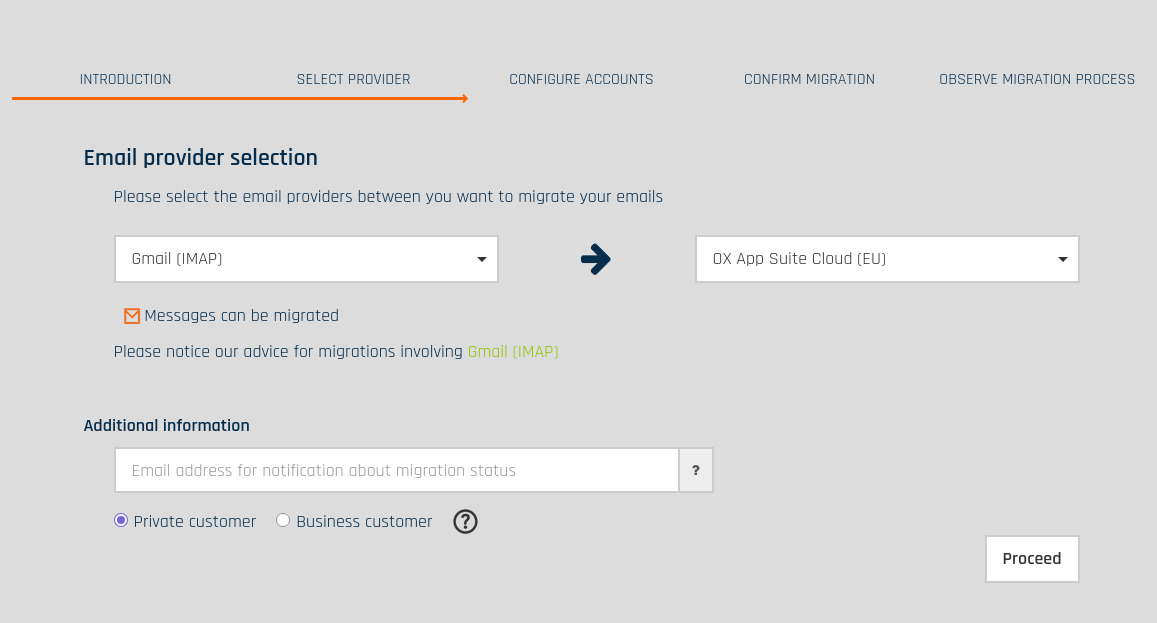
Provider Selection
On the start screen, select Google GSuite (Workspace) as the Current/Source Provider and Business Email as the New/Destination Provider.
Methods for Adding Accounts
- Adding a Google Workspace Account

- Username: Enter the administrator username
- Password: Enter the special group email address (for example, test-audriga@my-domain.com in the example above)
- Details: Enter the mailbox of the user you want to migrate

Click "Check" to verify your credentials. If the data is correct, a green check mark will appear.
If the credentials are wrong, a red cross will appear.
- Adding a Business Email Account

- Bulk add (via CSV; a maximum of 50 mailboxes per file is recommended)

After the bulk add, all accounts are listed;

The migration service will try to check the capacity of the destination accounts. This check may take some time for larger mailboxes. If you do not want to wait, you can continue.

6) Starting the Migration
The summary screen shows the number of accounts and the estimated amount of data; you can continue even if the source analysis is not complete. If necessary, enter a voucher code. Start with Start Migration.

The interface offers a Free trial option to migrate email and groupware data from the last 10 days. You can start by clicking Free trial.
7) Monitoring Migration Status
Large data migrations can take hours. You receive email notifications when the job is submitted, started and finished; you can open the status page from the link and monitor it.

There is a detailed log/protocol for each account; it is accessed through the Details and Protocol links on the right. Failed/untransferred items are listed here.

8) Delta Migration After Domain Name Transfer/DNS Change
After a domain name transfer or MX update, emails may continue to go to the old provider for a while because of DNS caching. Delta migration copies the new messages that landed in the old account in the meantime to the destination, after the initial migration is complete and the DNS change has taken effect. Waiting 24-48 hours for propagation is recommended.

Was this article helpful?
Thank you for your feedback.
Still stuck? Our support team is here to help. Tell us your question and our experts will help you.