Contents
Switching to another cPanel theme with a different style is easy.
The theme determines the look of the cPanel interface and the layout of its menus. You may want to switch to a look you find more comfortable, or choose a previous theme because you are used to an older interface. In this guide, we explain where to change the theme and what the change affects.
Steps to change the theme
The General Information panel is located on the right side of the cPanel home page. If you are on another page, you can return to the home page by clicking the cPanel logo at the top left.
- Log in to your cPanel account.
- In the General Information panel, you will see a Theme option with a drop-down menu.
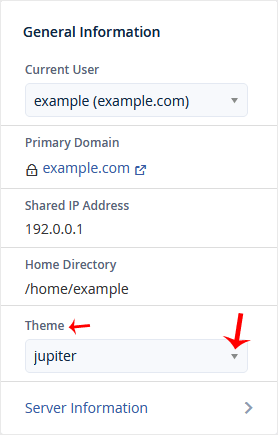
- Choose your preferred theme from the drop-down menu. The theme is applied automatically.
You do not need to press a separate save button; after your selection, the page reloads with the new theme. In the example image, the selected theme is jupiter.
What is in the General Information panel?
The General Information panel, where the Theme menu is located, shows the basic information about your account in one place. The panel in the image contains the following information:
- Current User: The cPanel user you are logged in as and the domain name.
- Primary Domain: The main domain name connected to your account.
- Shared IP Address: The server IP address your account uses.
- Home Directory: Your account's main folder on the server, for example
/home/example. - Theme: The cPanel theme you are using.
- Server Information: A link to details about the server.
What does changing the theme affect?
Changing the theme only affects the look of the cPanel interface. Your website files, databases, email accounts and other settings stay as they are; your visitors will not notice any difference on your site. The theme preference belongs to the cPanel user you are logged in as; it does not change the interface of other accounts on the same server. If you do not like the new theme, you can go back by choosing your previous theme from the same menu.
Menu names, icons and the placement of sections may differ between themes. If you cannot find a tool after switching to the new theme, you can reach it quickly by typing its name in the search box on the home page.
The drop-down menu lists only the themes installed on the server. If you see only one option in the menu, or the menu does not appear at all, there may be no other theme available on your server. In that case, you can contact your hosting provider.
Was this article helpful?
Thank you for your feedback.
Still stuck? Our support team is here to help. Tell us your question and our experts will help you.