Contents
cPanel supports many languages. If you want to change the interface language of your cPanel, follow these steps.
cPanel is a control panel that lets you manage your website files, email accounts, databases and SSL settings from one place. Seeing menus and tool names in the language you read most comfortably makes it easier to find the right tool and reduces the chance of mistakes.
What Does the Language Setting Change?
The language setting only affects your cPanel account interface: menus, icon names, buttons and warning messages appear in the language you choose. Your website content, your emails and the pages your visitors see are not affected. The language you choose is saved to your account; the information box at the top of the Change Language page shows which language your account is currently set to (e.g. “Your account's language is set to “English”.”).
When the interface language changes, menu names change too. That is why our blog’s cPanel guides give menu names in both Turkish and English; for example Preferences or Security.
Changing the cPanel Language Step by Step
The process takes only a few clicks and does not affect your files or other settings. Before you start, have your cPanel username and password ready. You can usually reach the cPanel login screen through the link provided by your hosting company or by adding :2083 to the end of your domain name (e.g. https://yourdomain.com.tr:2083).
- Log in to your cPanel account.
- In the Preferences section, click Change Language.
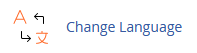
- Select the language you want from the drop-down menu and click the Change button.
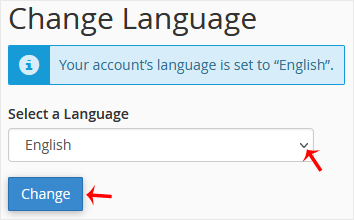
The drop-down menu is located under the Select a Language heading on the page. When you click the Change button, the interface switches to the language you selected.
The language of your cPanel has been changed.
What to Do If the Language Did Not Change
- If you cannot find the Preferences section, type “Change Language” into the search box at the top of the cPanel home page to open the tool.
- Refresh the page; your browser may be showing an old version of it.
- If the interface is still in the old language, log out and log in again.
- If the problem persists, contact the support team of the company that provides your hosting service.
Tip
You can change the language setting again at any time with the same steps. If you are going to share screenshots when creating a support request, having the interface in English can make it easier to match menu names with those in documentation. Likewise, if you cannot find a menu while following our guides, you can search for it in the search box by the English name given in brackets.
Was this article helpful?
Thank you for your feedback.
Still stuck? Our support team is here to help. Tell us your question and our experts will help you.