Contents
cPanel File Manager is a practical way to manage your website files. You can create a new folder or file in a few steps.
What does File Manager do?
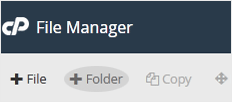
File Manager is the cPanel tool that lets you view and edit the files and folders in your hosting account directly from your browser, without installing an FTP program. You can upload, download, copy, move, rename and delete files. In this guide, we explain how to create new items with the +Folder and +File buttons in the toolbar.
When File Manager opens, the folder tree is listed on the left and the contents of the selected folder on the right. To open a folder, you can double-click its name; to go back to the parent directory, use the Up One Level button in the toolbar.
How to create a new folder
- Log in to your cPanel account.
- In the Files section, click File Manager.

- Go to the directory where you want to create the folder.
- Click the +Folder button.
- Type the folder name in the New Folder Name field (for example
my-folder) and click Create New Folder.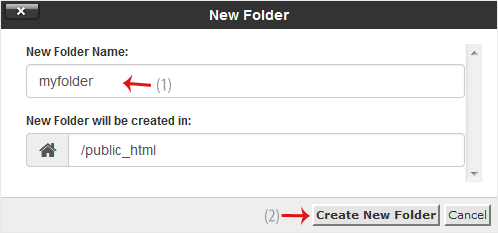
The dialog also has a New Folder will be created in field. This field shows the directory you are currently in; in the example image, this directory is /public_html. If you want to create the folder somewhere else, you can change this path. To cancel the operation, click the Cancel button.
How to create a new file such as MyFile.txt
- Go to the directory where you want to create the file.
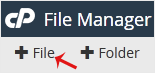
- Click the +File button.
- Type the file name in the New File Name field (for example
MyFile.txt) and click Create New File.
The file you created appears empty in the list. To write its content, you can select the file and use the Edit button in the toolbar. The extension in the file name determines the file type; for example, .txt is plain text and .html is a web page file.
Things to keep in mind
- The
public_htmlfolder is the root directory of your website. Files you place here may be accessible to visitors through your domain name. - Avoiding spaces and Turkish characters in file and folder names prevents possible address problems.
- Servers are usually case-sensitive;
MyFile.txtandmyfile.txtare treated as different files. - It is recommended that you back up existing files before changing them.
Was this article helpful?
Thank you for your feedback.
Still stuck? Our support team is here to help. Tell us your question and our experts will help you.