Contents
You can edit the files on your website with cPanel's built-in File Manager.
File Manager is a cPanel tool that lets you view, upload and edit your website's files directly in your browser, without installing an FTP program. To fix a typo, change a link or make a small update to a configuration file, you don't need to download the file to your computer and upload it again.
Steps to Edit a File
- Log in to your cPanel account.
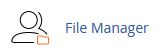
- In the Files section, click File Manager.
- Go to the directory that contains the file.
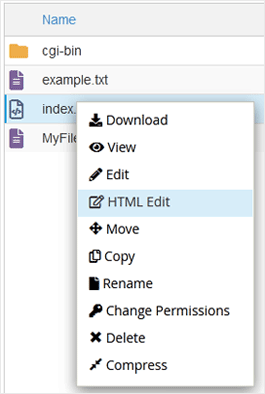
- Right-click the file and choose Edit or HTML Edit from the menu.
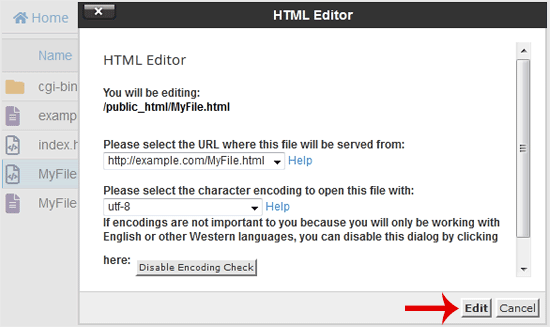
- In the window that opens, click the Edit button.
- Make your changes to the file and click Save Changes.
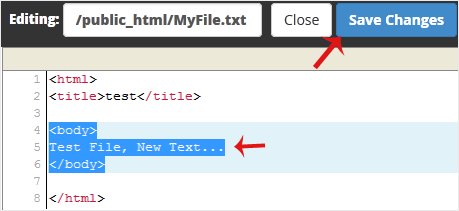
Your file has been edited.
The Difference Between Edit and HTML Edit
When you right-click a file, the menu that opens contains the Download, View, Edit, HTML Edit, Move, Copy, Rename, Change Permissions, Delete and Compress options. There are two options for editing:
- Edit: Opens the file in the code editor. You see and change the raw content of the file with line numbers. Suitable for text files, PHP, CSS and configuration files.
- HTML Edit: Opens the HTML Editor offered for HTML files.
What Is in the HTML Editor Window?
When you click an editing option, the window that opens shows the path of the file you are about to edit (e.g. /public_html/MyFile.html) on the You will be editing line. In this window you can choose the address where the file will be served from and the character encoding the file will be opened with. Check that the encoding is set to utf-8 so that Turkish characters display correctly. If you don't want to see this window every time, you can turn off the encoding check with the Disable Encoding Check button. Then click the Edit button to move on to the editor; to give up, use the Cancel button.
Things to Check Before Editing
- Before making changes, save a copy of the file to your computer with the Download option in the right-click menu. If something goes wrong, you can upload the old file again.
- Check the Editing field at the top of the editor to make sure the right file is open.
- If you click Close without saving, your changes will not be saved.
- After saving, open your website in a browser to check that the change looks as expected.
Was this article helpful?
Thank you for your feedback.
Still stuck? Our support team is here to help. Tell us your question and our experts will help you.