Contents
Your cPanel password is the key to the control panel that gives access to your website's files, your email accounts and your databases. If you think your password has been shared with others or you have been using the same password for a long time, changing it is a good step for the security of your account. In this post we explain how to change your password from within cPanel and describe the fields on the password screen.
Changing Your Password from Within cPanel
If you can access your cPanel account, follow the steps below to reset your password:
- Log in to your cPanel account.
- In the Preferences section, click Password & Security.

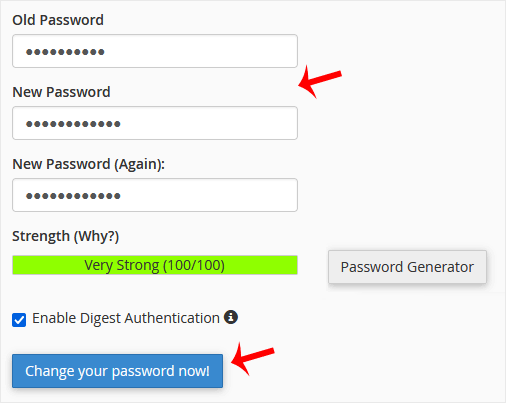
- Enter your old password.
- Enter your new password or use the Password Generator.
- Click the Change your password now button.
If you see a success message, your password has been changed. You can now log in to your account with your new password.
Fields on the Password & Security Page
On the Password & Security page you will see the following fields:
- Old Password: The password you currently use.
- New Password: The new password you want to set.
- New Password (Again): The field where you enter your new password once more to avoid typos.
- Strength: An indicator that scores how strong your new password is out of 100. You can create a strong password with the Password Generator button next to it.
- Enable Digest Authentication: A setting related to the Web Disk feature; if you do not use this feature, you do not need to change it.
Tips for a Strong Password
- Use a combination of upper- and lower-case letters, numbers and symbols.
- Do not use predictable information such as your date of birth, your domain name or your company name in your password.
- Do not use your cPanel password for other services.
- Do not save your password in the browser on shared computers.
- Change your password regularly, and immediately if someone else has accessed your account.
- Write down the password you create with the Password Generator in a safe place before saving it.
If You Have Forgotten Your Password
The steps above are for when you know your old password and can log in to cPanel. If you do not remember your old password, you cannot set a new one on the Password & Security page; in this case you will need help from the support team to regain access to your account. Stating which domain name's hosting account you need help with in your support ticket speeds up the process.
Note: If you have forgotten your cPanel password and cannot access your account, please open a support ticket.
Was this article helpful?
Thank you for your feedback.
Still stuck? Our support team is here to help. Tell us your question and our experts will help you.